
Google Sheets
Connect Google Sheets to MESA with a Google sign in and see the triggers and actions available for reading and writing spreadsheet rows.
Connection
Section titled “Connection”When you’re setting up your first workflow with Google Sheets, you’ll need to create a connection through MESA’s Google App or your own custom Google App. Click on the Sign in with Google button to finish the process.
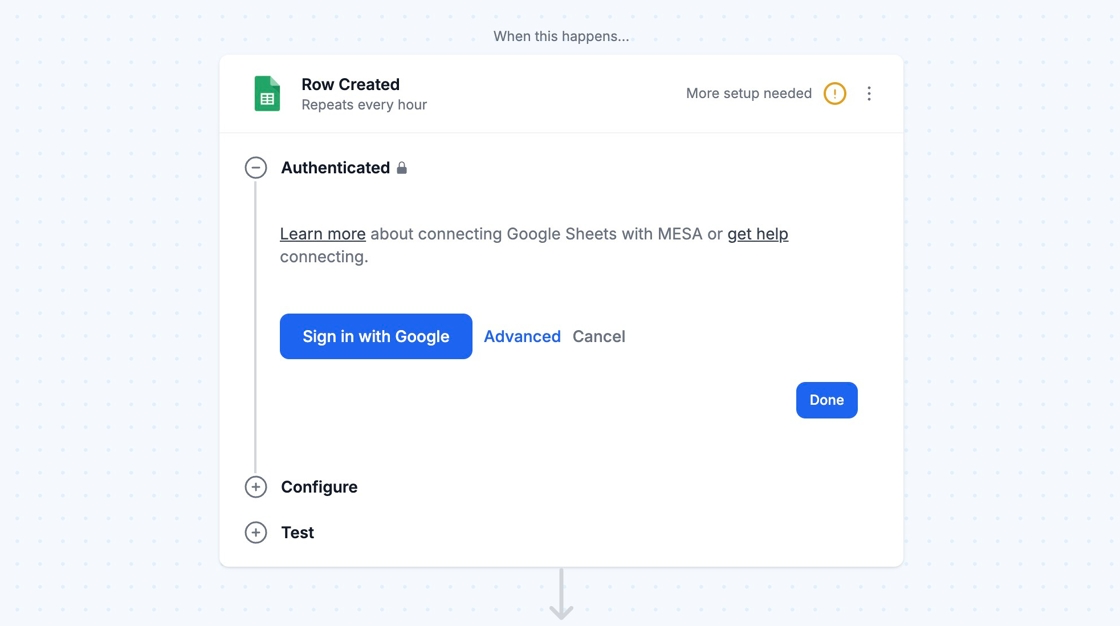
Afterward, you can re-use the newly created connection and select it for your future workflows!
In this section
Add RowUse the Google Sheets Add Row action in MESA to append a row, retrieve your spreadsheet columns, and map variables into each one.
Query RowsUse the Google Sheets Query Rows action in MESA to retrieve rows from a sheet, with basic filtering to return only the matching data.
Update RowUse the Google Sheets Update Row action in MESA to change an existing row, setting new column values with variables or fixed text.
Row CreatedStart a MESA workflow when a new row appears in Google Sheets, using the polling Row Created trigger and its retrieved columns.
Row Updated (Advanced)Install the Apps Script from MESA into your Google Sheet so the Row Updated trigger starts a workflow whenever a row is edited.
Creating New SpreadsheetsCreate spreadsheets and sheets with MESA and fill them using Bulk Add Rows, naming files with variables and choosing a Drive folder.
Technical NotesAvoid common Google Sheets problems in MESA workflows, such as duplicate or blank header cells, and learn the limits that affect row retrieval.