Notion
Connect Notion to MESA by granting access to selected pages and databases, then create and update Notion content from workflows.
Connection
Section titled “Connection”When you’re setting up your first workflow with Notion, you’ll need to connect MESA with Notion.
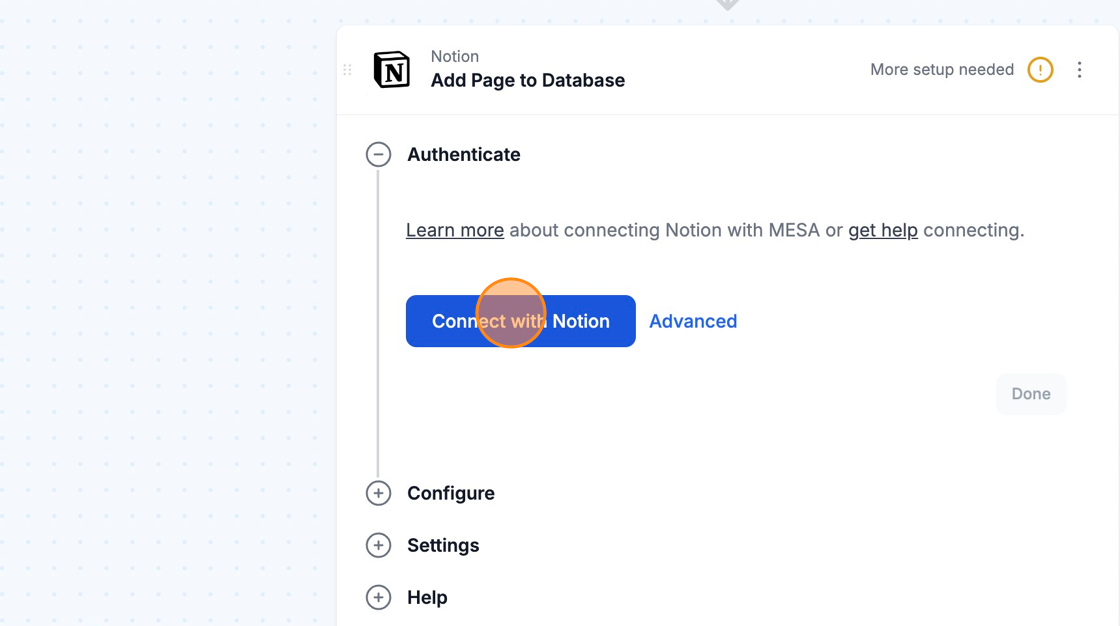
1. Click on the Connect with Notion button to start the process.
2. Once clicked, you will be prompted with a Permissions page. Click on Select pages.
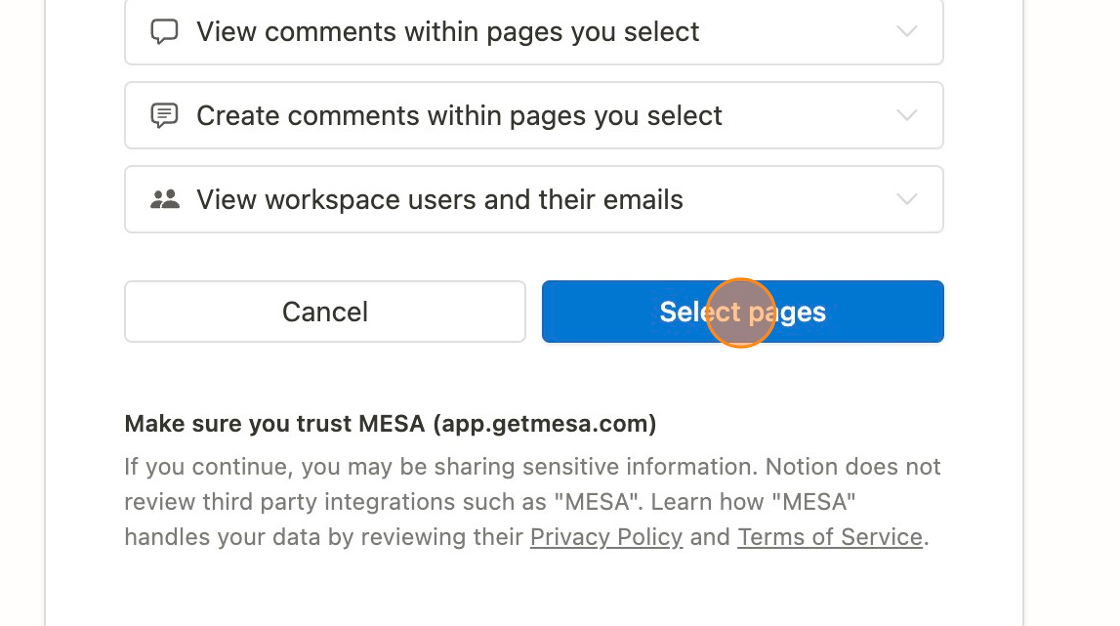
3. Select any or all pages that you’d like MESA to connect to by clicking on the checkboxes.
4. After selecting your pages, click on Allow Access.
Afterwards, you will be redirected back to MESA. You can now re-use the newly created connection and select it for your future workflows.
Configure
Section titled “Configure”
Retrieve properties (columns) from your Notion Database
Section titled “Retrieve properties (columns) from your Notion Database”In MESA’s Add Page to Database and Update Page action, we can automatically detect the properties (columns) in your Notion Database and add them to MESA using the Retrieve Fields button.
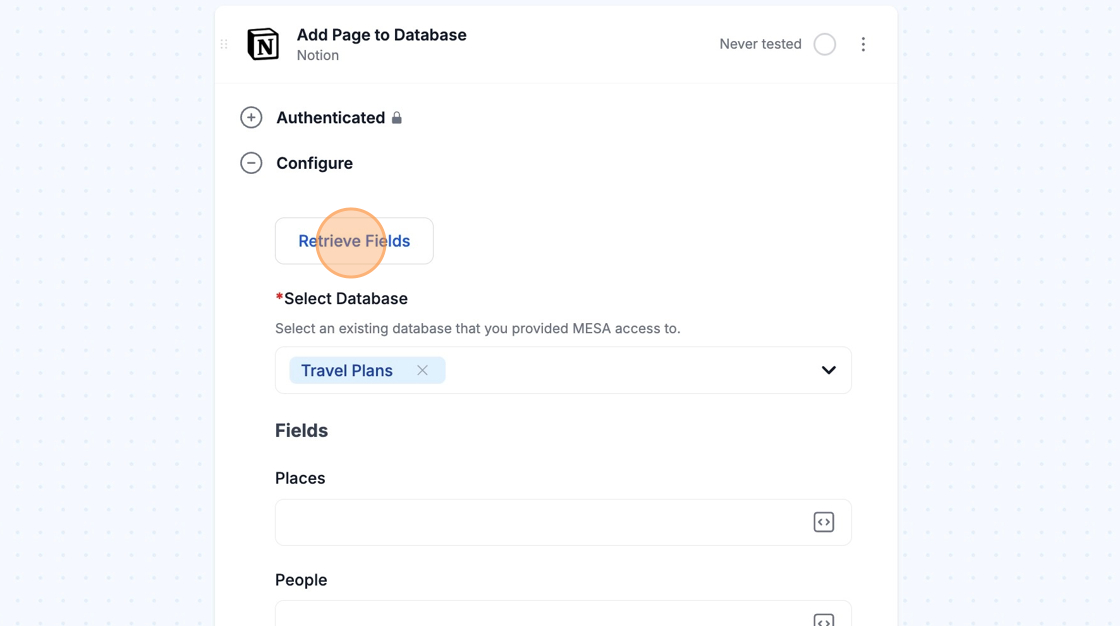
Send data with different property types
Section titled “Send data with different property types”Notion provides a variety of property types that lets you store data in each page. Learn more about property types.
When using MESA’s Variables feature, you will want to make sure that the data (that represents each variable) matches Notion’s expected format. When the data does not match Notion’s expectations, your workflow will fail.
Query Database for specific pages
Section titled “Query Database for specific pages”To search for specific pages in an existing database, you can use MESA’s Query Database action.
Information
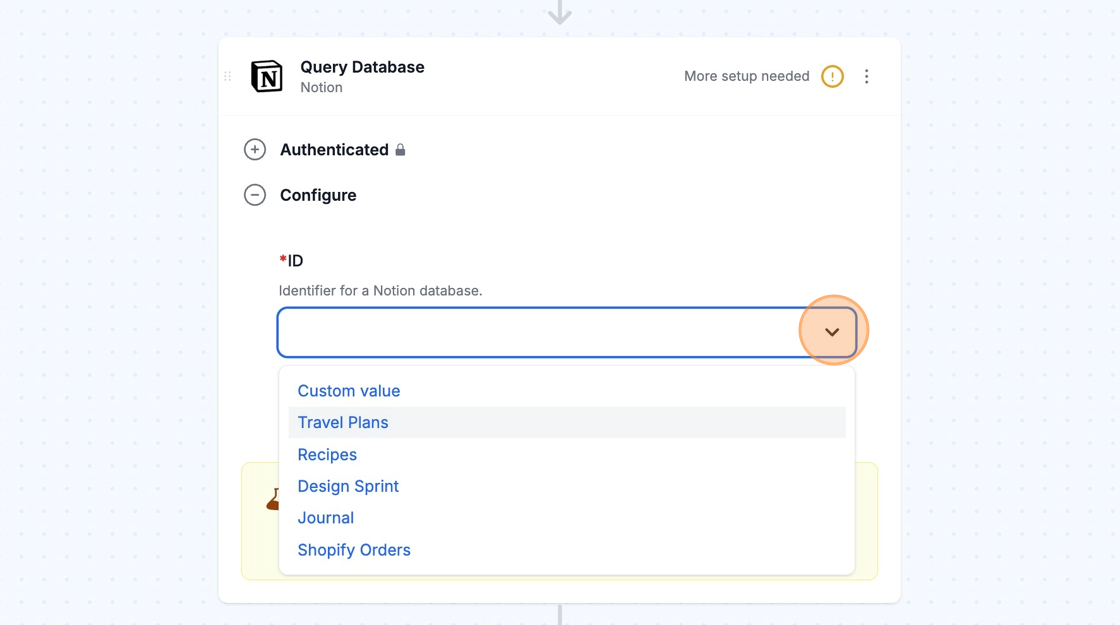
Select the database that the pages belong to from the ID field. MESA will automatically display databases that you gave access to.
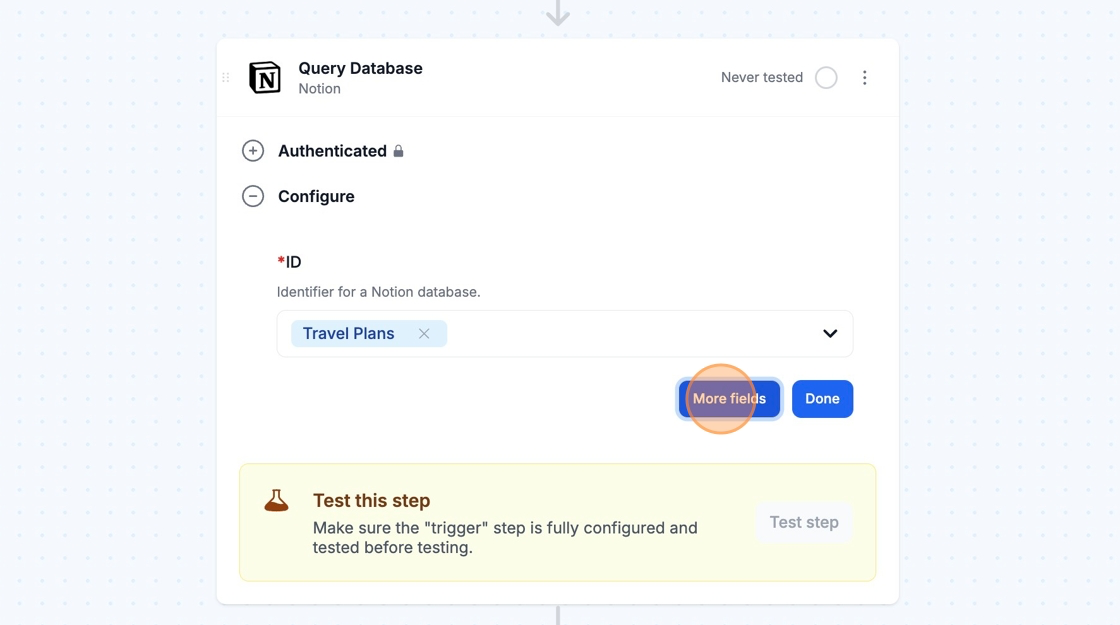
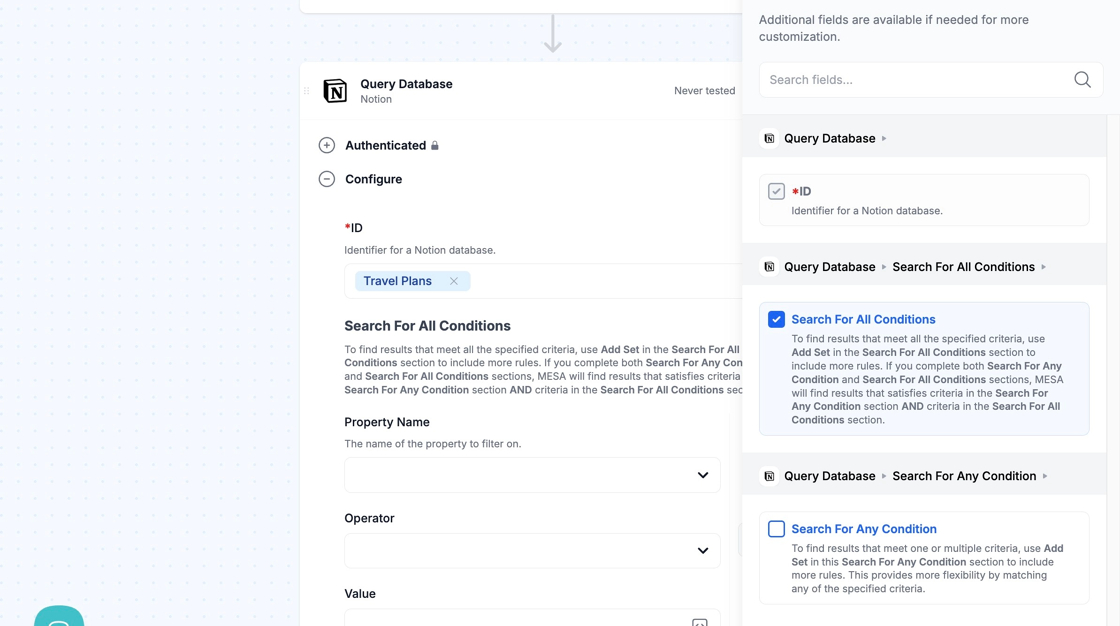
Select More fields to select from two sections called Search For All Conditions and Search For Any Condition.
These sections let you search for pages based on the database’s existing properties. MESA will automatically populate existing properties for your specified database under the Property Name field.
When filling out the Value field, please ensure that you type the text exactly as how it is shown in your Notion database.
- Search For All Conditions: Lets you search for pages that meet all the specified criteria. You can click on the Add Set button in this section to include more rules.
- Search For Any Condition: Lets you search for pages that meet one or multiple of the specified criteria. This provides more flexibility by matching any of the specified criteria. You can click on the Add Set button in this section to include more rules.
Examples
- If you add rules in the Search For All Conditions section only, MESA will ask Notion for any pages that meet all the conditions within the Search For All Conditions section.
- If you add rules in the Search For Any Condition section only, MESA will ask Notion for any pages that meet any of the conditions within the Search For Any Condition section.
- If you add rules in the Search For All Conditions section and in the Search For Any Condition section, MESA will ask Notion for any pages that meet all of the conditions within the Search For All Conditions section AND those that also meet any of the conditions within the Search For Any Condition section.
Limitation
- MESA currently does not support nested filters within an existing nested filter at this time.
Technical Notes
Section titled “Technical Notes”
Unsupported field types
Section titled “Unsupported field types”The following property types are currently unsupported in MESA and will not be added to the MESA interface.
- Files
- Formulas
- Relation
- Rollup
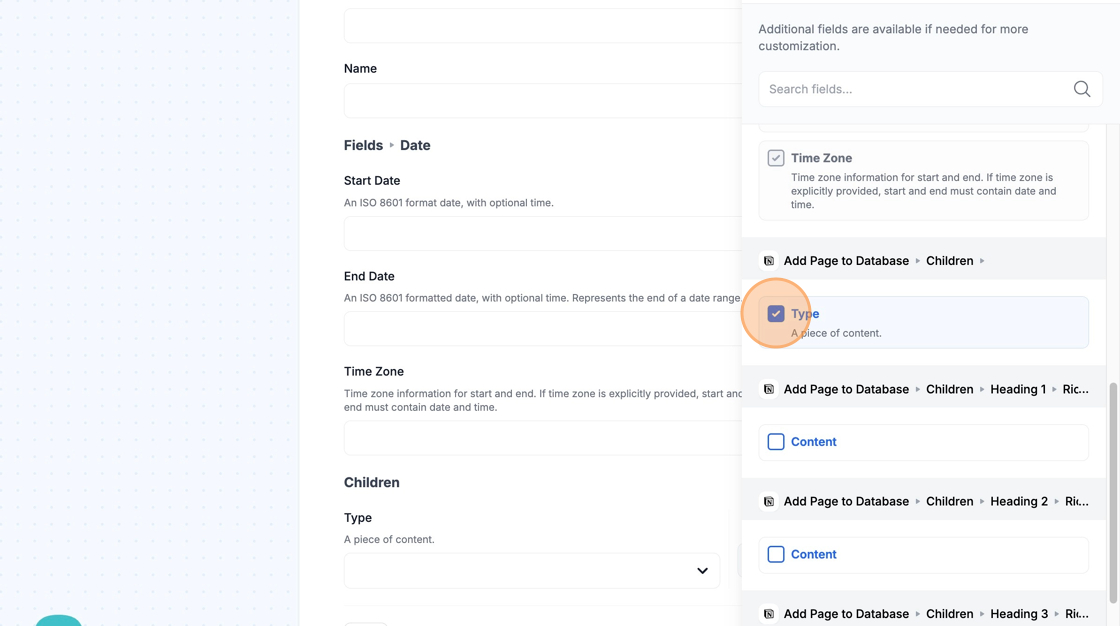
Adding content block types to pages
Section titled “Adding content block types to pages”When using MESA’s Add Page to Database action, you can add content blocks to the new page by clicking on More fields below Children. Then, toggling Type