Yotpo Loyalty
Find your Yotpo Loyalty and Rewards API Key and GUID in Settings and add them to MESA to manage points and rewards in workflows.
Connection
Section titled “Connection”When you’re setting up your first workflow with Yotpo Loyalty & Rewards, you’ll need to add your unique API Key and GUID so that Yotpo Loyalty & Referrals is a connected app within MESA.
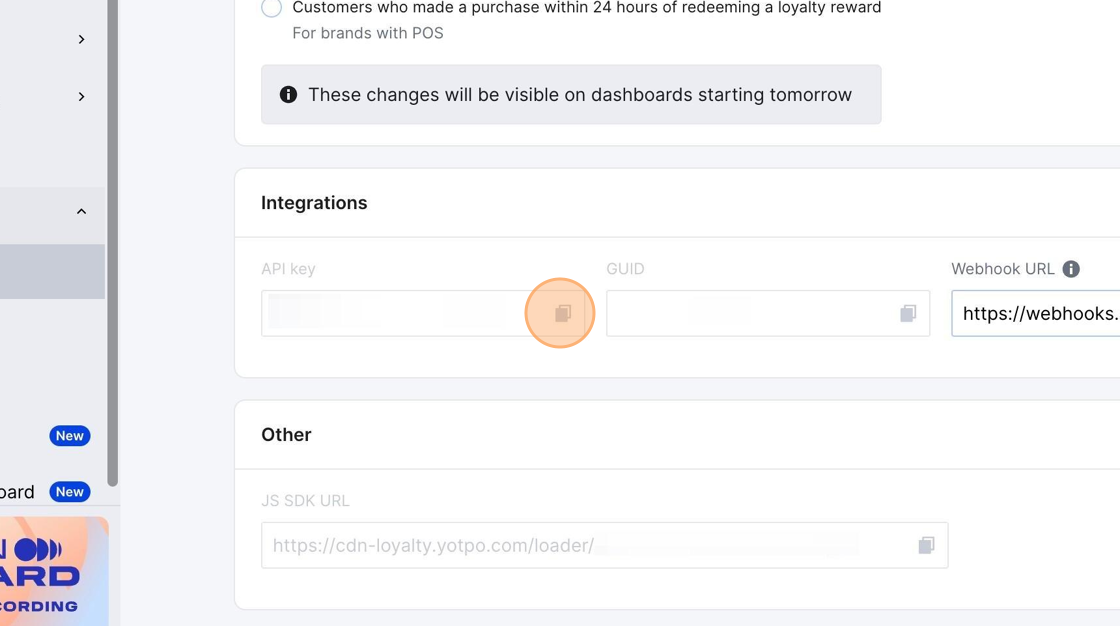
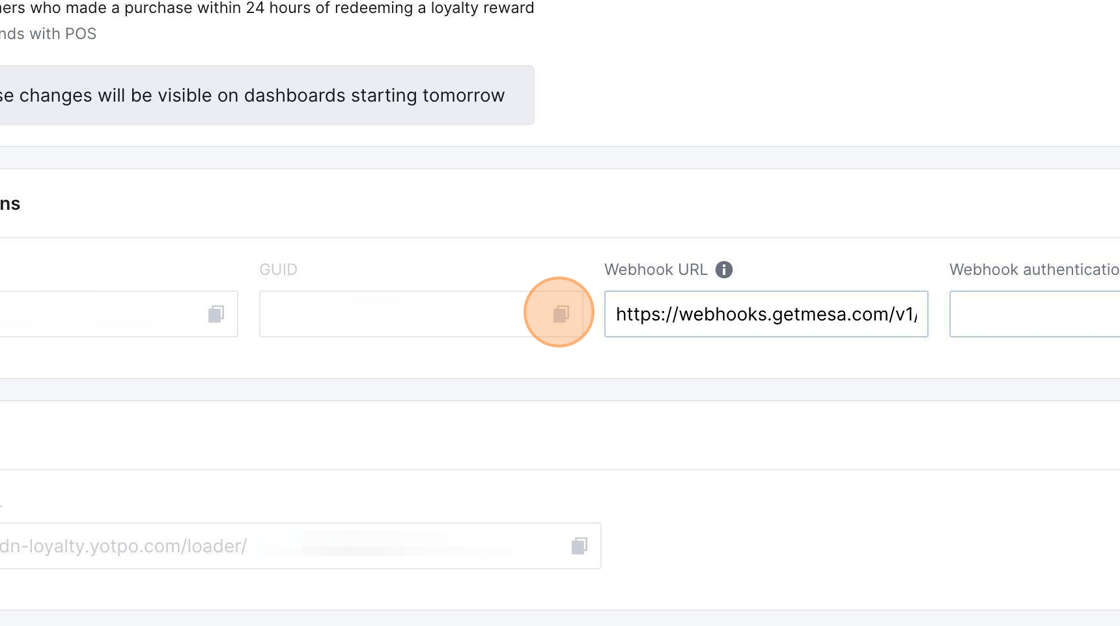
You can find both the API Key and GUID in your Yotpo Loyalty & Rewards app > Settings > General.
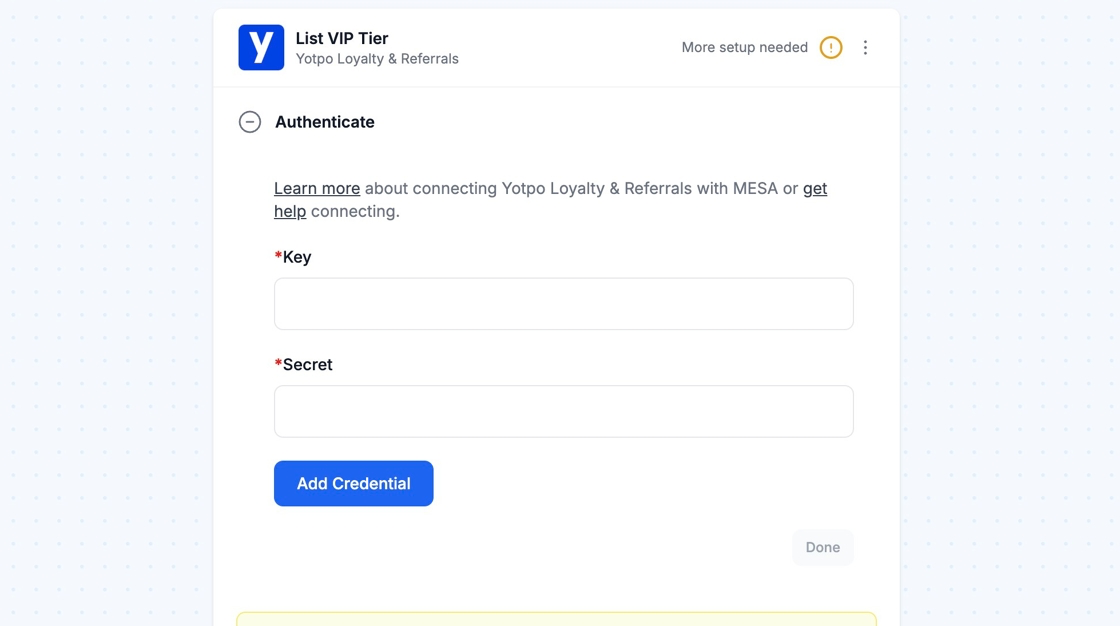
Add the API Key field to the Key field in the connection, and GUID value to the Secret field.
Lastly, in your MESA workflow, click on Add Connection and then you are all set.
Configure
Section titled “Configure”
Triggers and Webhooks
Section titled “Triggers and Webhooks”When you’re setting up your first trigger for Yotpo Loyalty & Rewards, you’ll need to add the Webhook URL to your Yotpo Loyalty & Rewards account, so updates are sent to MESA.
Create a workflow with a Yotpo Loyalty & Referrals Trigger. Copy the Webhook URL value under Configuration. If it’s blank, save and/or refresh the workflow.
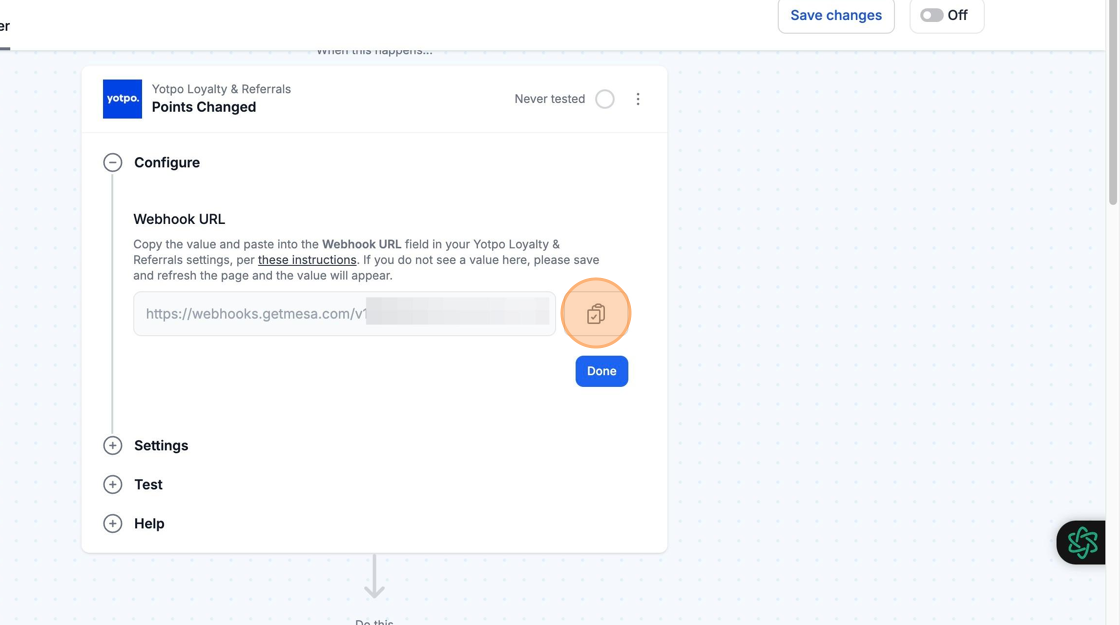
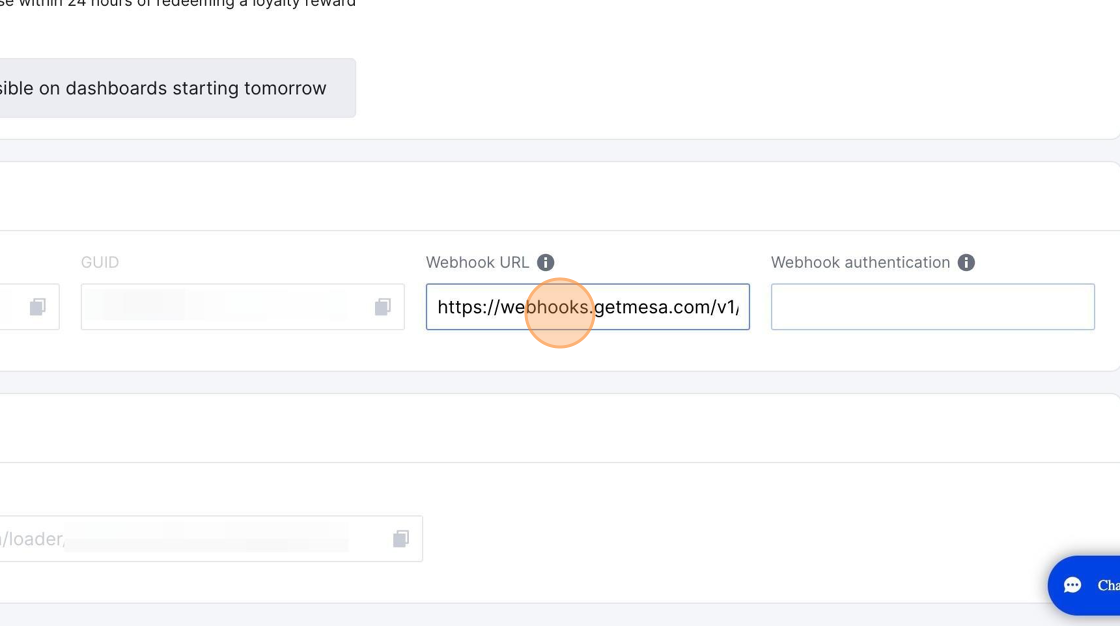
In your Yotpo Loyalty & Rewards app, go to Settings > General, then paste into the Webhook URL field and hit Save. If you already have value(s) in that field, add a ; (semi-colon) before the pasted value, so that updates can be sent to MESA, in addition to your existing integrations.