
Query Rows
Use the Google Sheets Query Rows action in MESA to retrieve rows from a sheet, with basic filtering to return only the matching data.
The Query Rows action retrieves rows from your Google Spreadsheet. To get started, Authenticate and select an existing Spreadsheet and Sheet. Then click the Retrieve Fields button to retrieve the columns from your spreadsheet. These columns will be available as variables in future steps in your workflow.
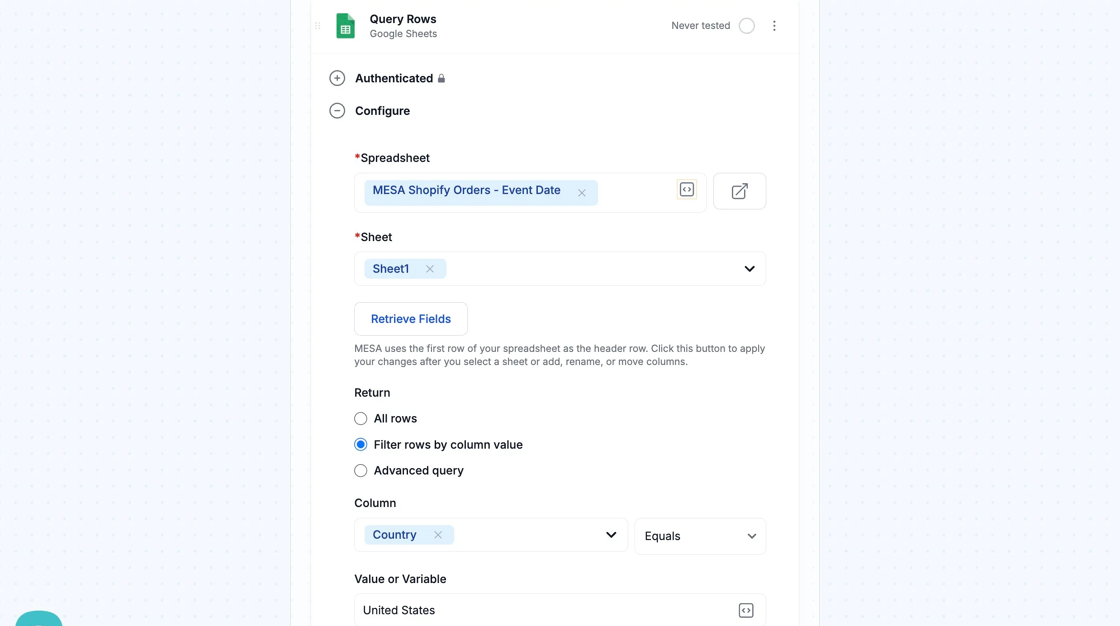
Basic filtering
Section titled “Basic filtering”You can choose to fetch all of the rows in your spreadsheet, or you can filter the rows returned by specific values. For basic filters, use the Filter rows by column value option pictured above. The Column value will pre-populate with the columns from your spreadsheet, and you can select columns that equal, do not equal, or contain a specific value.
MESA will use the header values detected when you last clicked the Retrieve Fields button in the builder.
Tip: Depending on your plan, the Loop step generally will time out after about 200 records. If your spreadsheet has more than 200 rows, we suggest filtering your rows in the Google Sheets Query Rows step.
Advanced filtering
Section titled “Advanced filtering”To filter by multiple column values, specify a specific subset of columns that should be returned, or to run advanced queries that calculate the sum or average value of columns, use the Advanced query option and enter a Google Sheets Query Language query in the input.
Because the result of a query doesn’t always match your header row, MESA will use the A, B, C, … column representation as keys for your response.
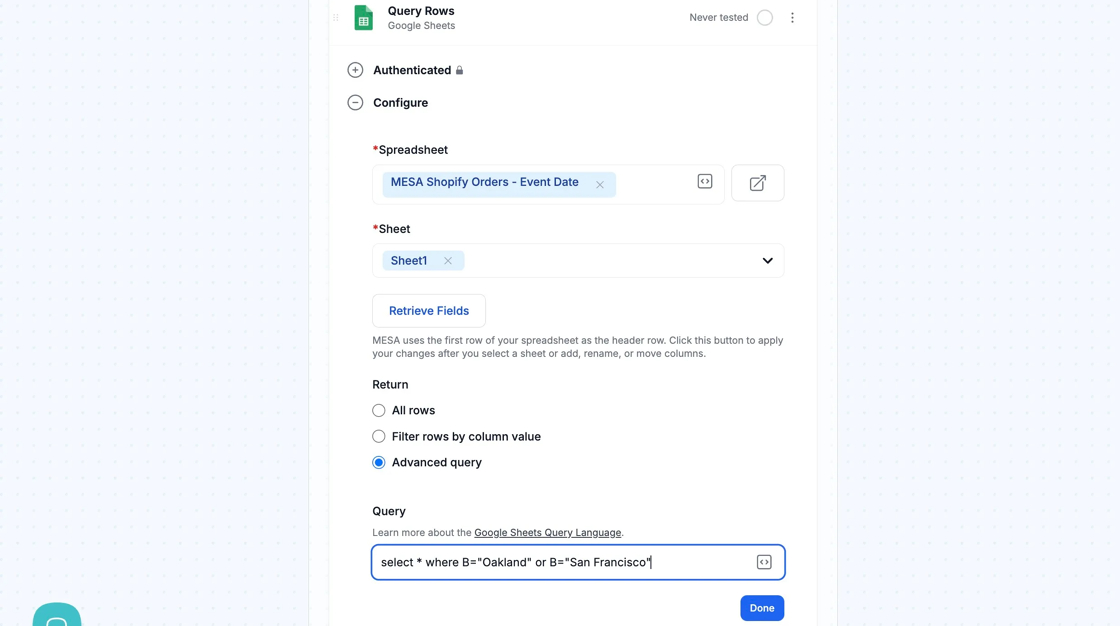
Query examples
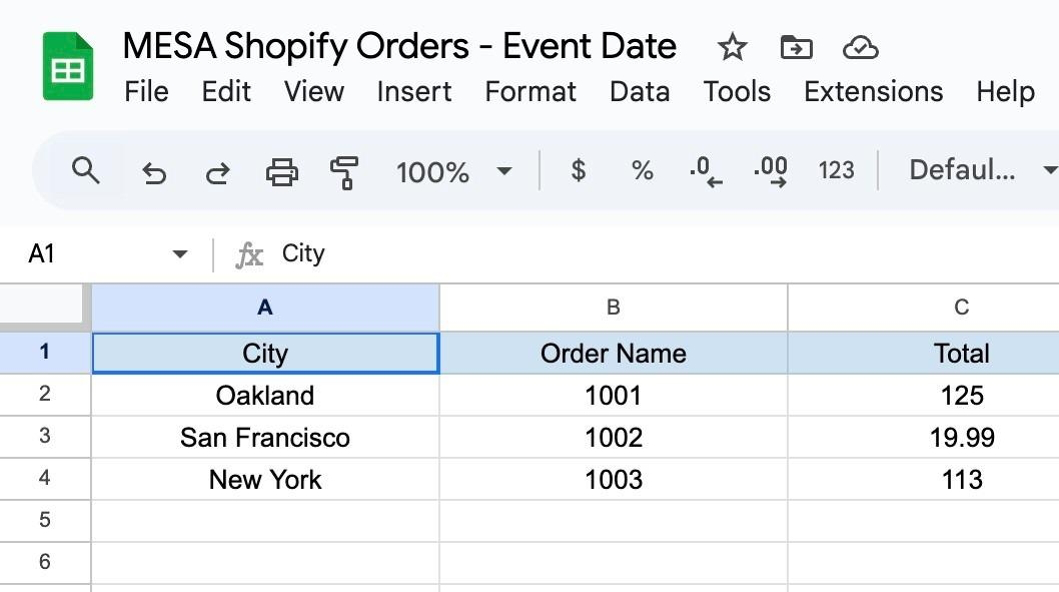
Section titled “Query examples”Here are a few basic examples of Query Language queries based on the spreadsheet below. Additional examples can be found in the Query Language docs.
Return records that match multiple filter criteria (and):
Section titled “Return records that match multiple filter criteria (and):”select * where B="Oakland" and C>100This will return a single row (Row 2).
Return records with multiple options (or)
Section titled “Return records with multiple options (or)”select * where B="Oakland" or B="San Francisco"This will return three rows (Row 2 and 3).
Calculate the total value of a column
Section titled “Calculate the total value of a column”select sum(C) where B="Oakland"This will return a single record with one value, the total of C2 + any other row where Oakland was the City.