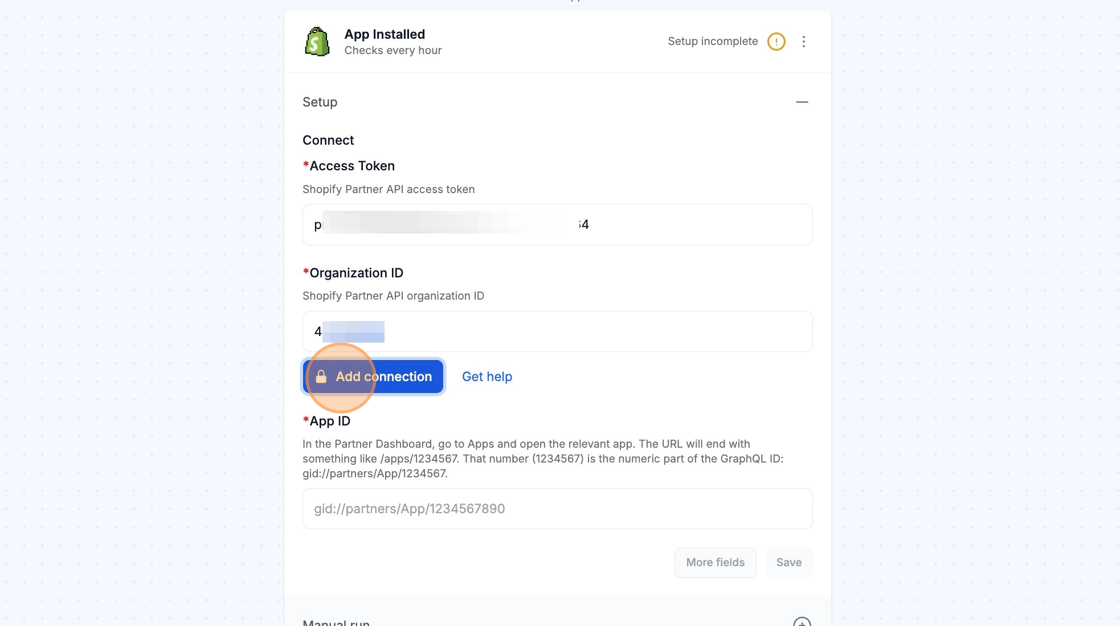
Shopify Partner
Create a Shopify Partner API client in your Partner dashboard and add its details to MESA to automate partner account tasks.
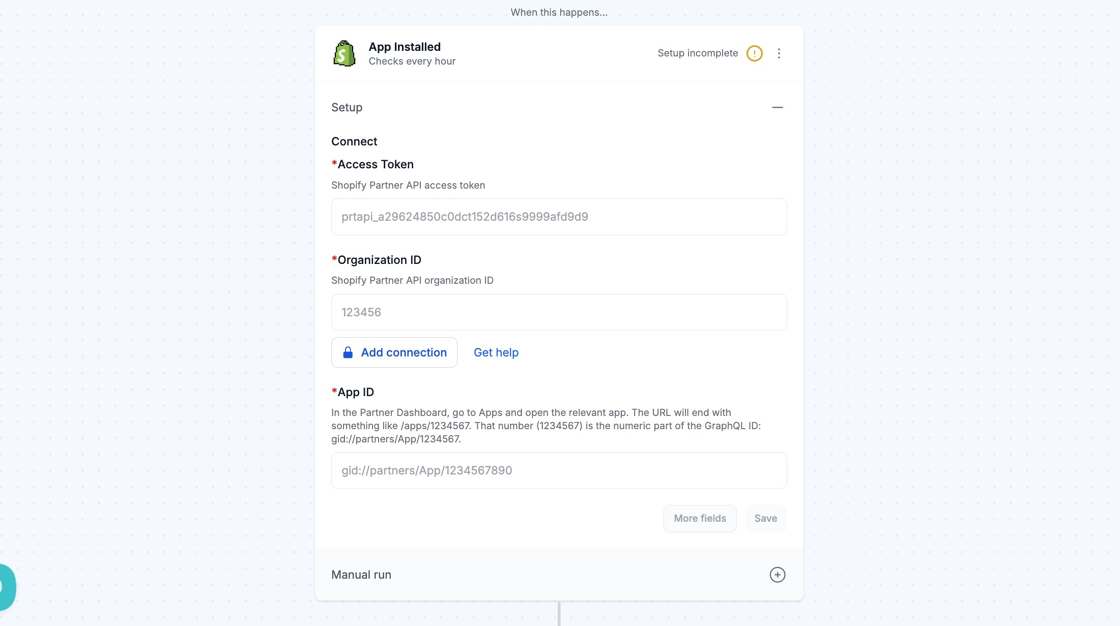
When you’re setting up your first workflow with Shopify Partner, you will need to create a Connection in order to connect MESA with your Shopify Partner account.
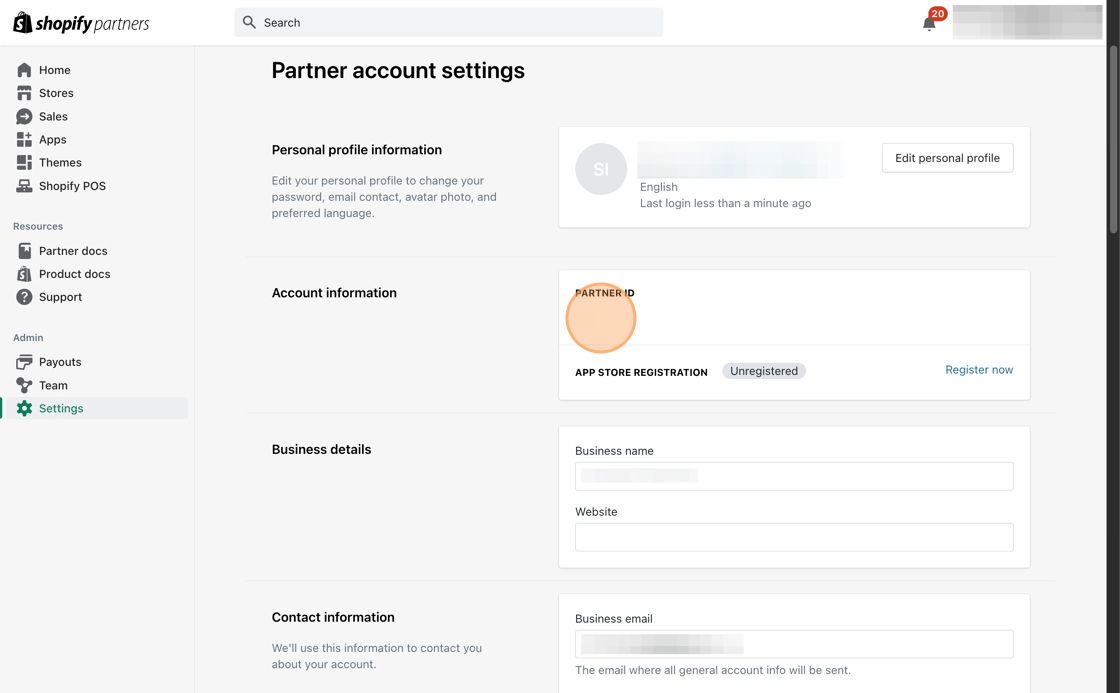
First, go to the Shopify Partner dashboard https://partners.shopify.com/ and then click into Settings.
In the Account information section, copy your Partner ID and paste it in the Organization ID field of your Shopify Partner step in MESA.
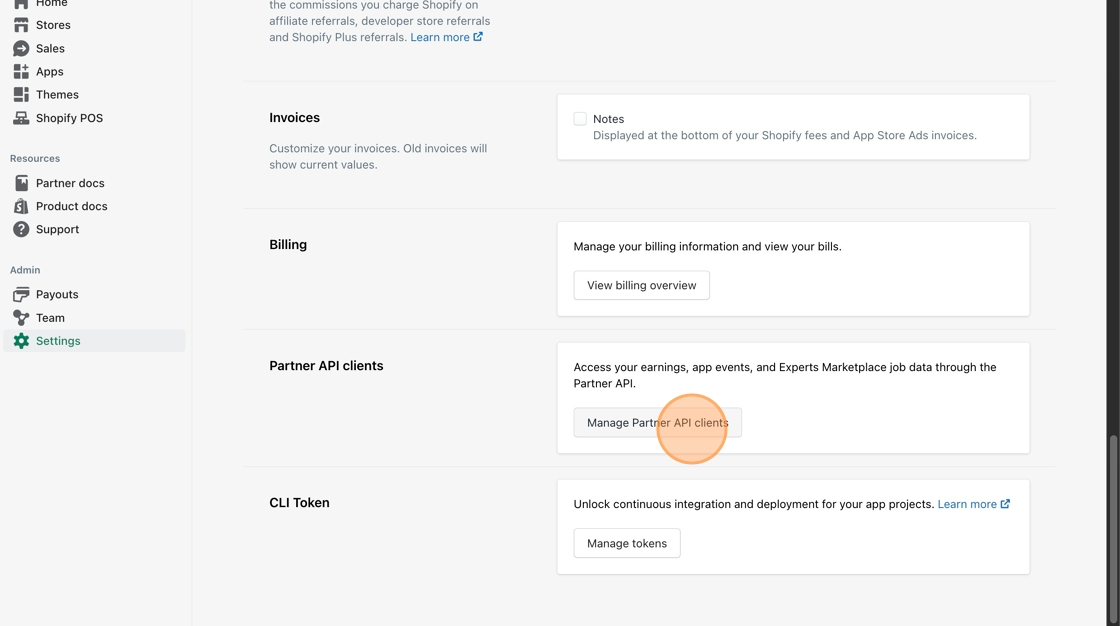
Then, scroll down to the Partner API clients section in your Partner Settings and click on the Manage Partner API Clients button.
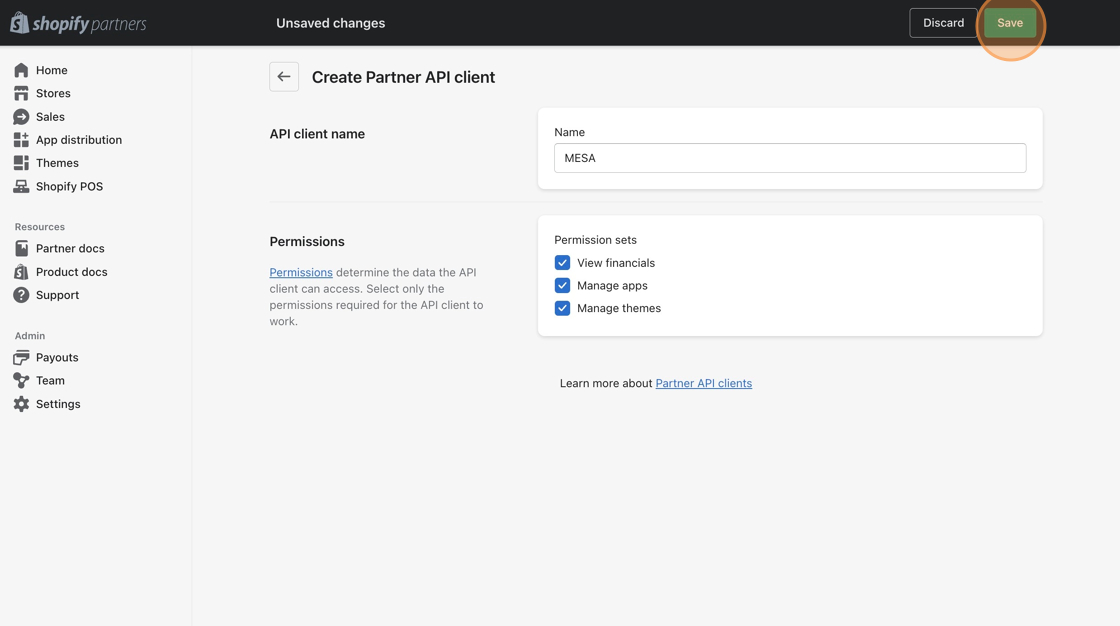
Then, click the Create API Client button, enter MESA for the name, add all permissions, and save your changes.
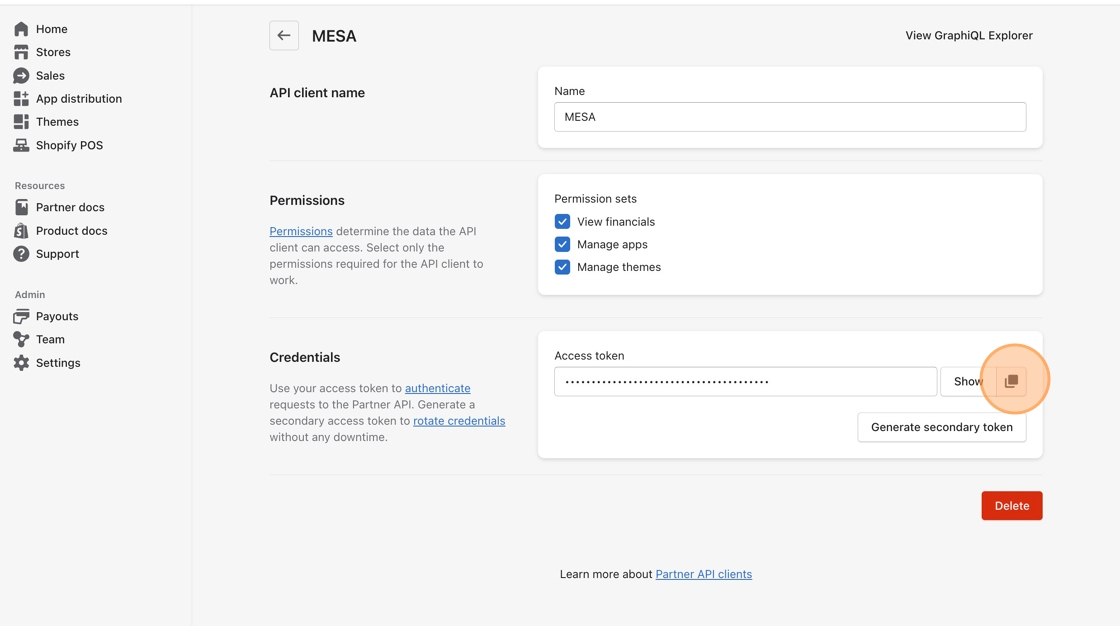
Click into your newly created API client, copy the Access Token, and paste it in the Access Token field of the Shopify Partner step in MESA.
Click the Add connection button to complete your connection with Shopify Partner.