
Connect Pinterest to MESA by logging in and approving access, then use Pinterest steps to create pins from your workflows.
Connection
Section titled “Connection”When you’re setting up your first workflow with Pinterest, you’ll need to create a Connection. Click on Connect with Pinterest to start the process.
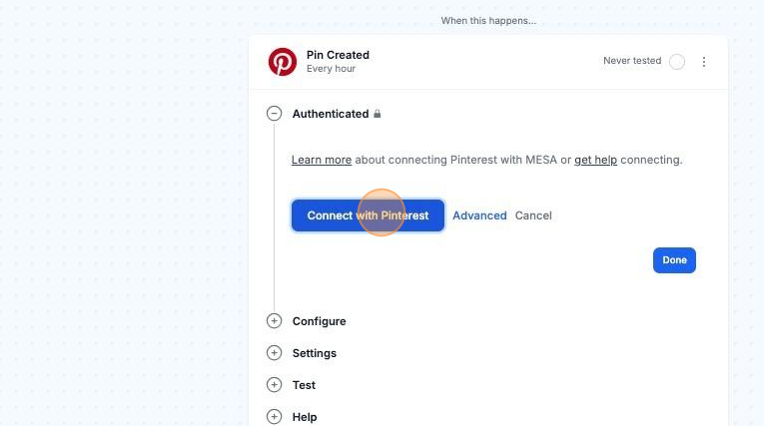
You may be asked to log in to your Pinterest account if not already logged in. Once logged in, you will be prompted with a screen to give MESA access to your Pinterest account.
Then, click on the Give access button.
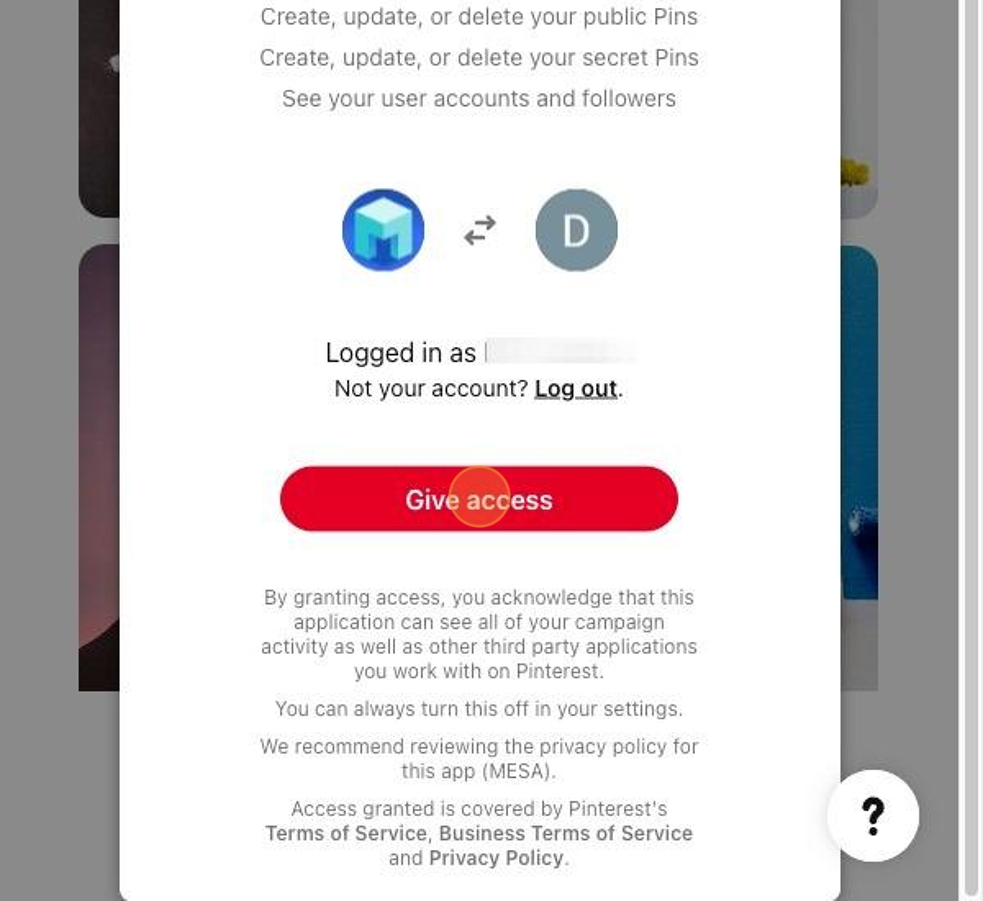
Afterwards, you will be redirected back to MESA. You can re-use the newly created connection and select it for your future workflows! MESA is now connected with Pinterest!
I don’t see my Pinterest workflow activating when a board or pin is created?
Section titled “I don’t see my Pinterest workflow activating when a board or pin is created?”MESA workflows that contain Pinterest Board Created or Pin Created Trigger will run on a polling system. Meaning, on every hour or whatever the selected frequency is selected in your MESA workflow, MESA will look for any recent activity in Pinterest. As a result, you may not see immediate activity in your MESA workflow until the frequency hits.
You can find the polling system (Schedule) under the More options. You can keep the default frequency or adjust it.
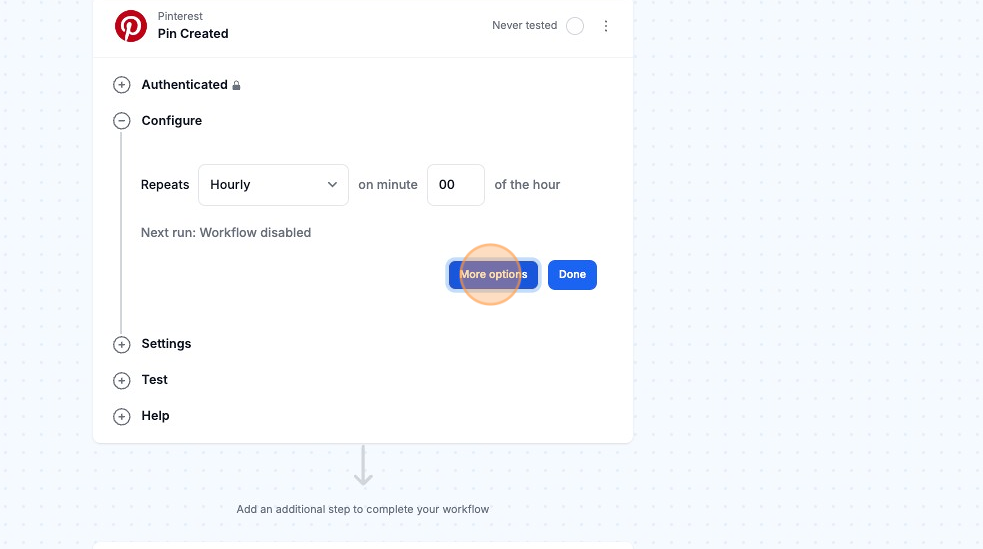
Once the frequency hits, MESA will process every single task that has accrued within the previous timeframe.