Skip to content

Installing MESA

Get started with just a few easy clicks

  1. Navigate to https://www.getmesa.com/pricing

  2. Select a plan to start your 7-day free trial
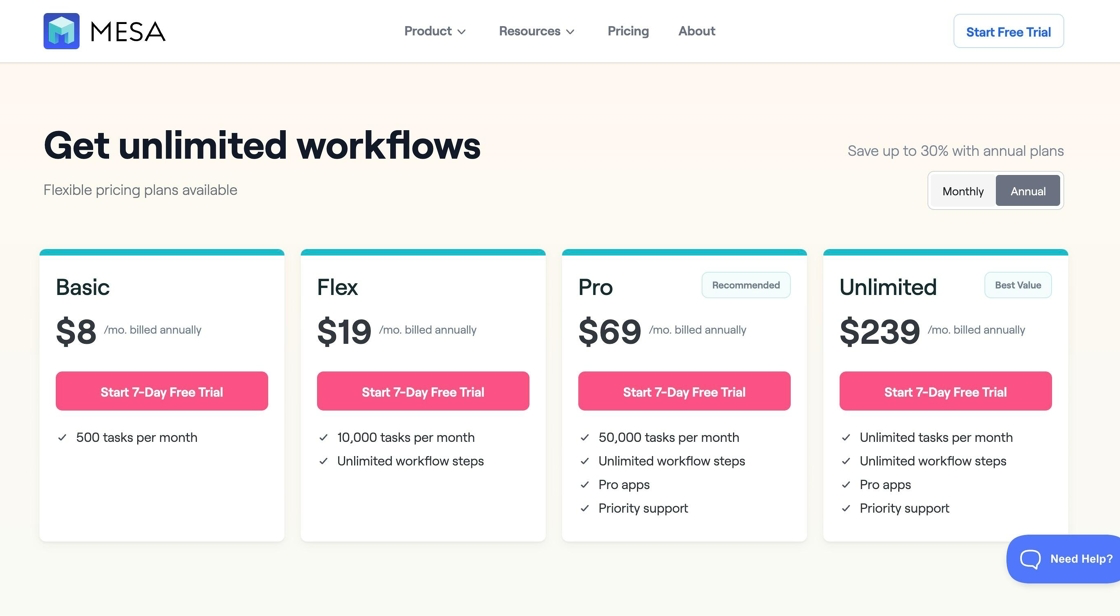
    Screenshot of the getmesa.com pricing page for starting a 7-day free trial. Spotlight a plan selection button.
  3. Sign up with your Google account or an email address and password
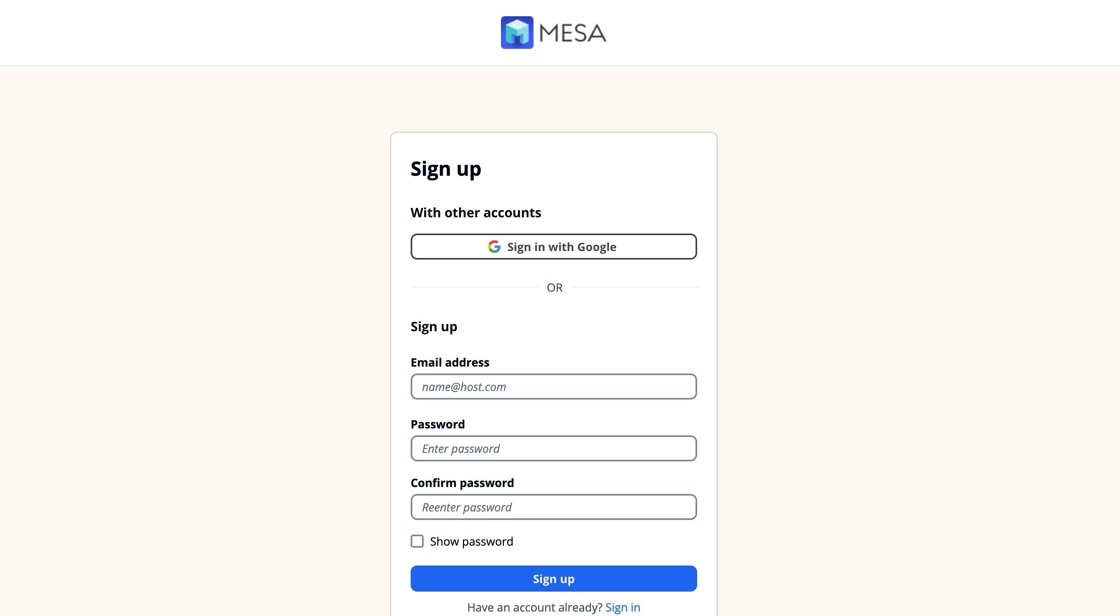
    Screenshot of the MESA sign up screen offering Google account or email and password. Spotlight the sign up form.
  4. Enter your payment info to start your trial
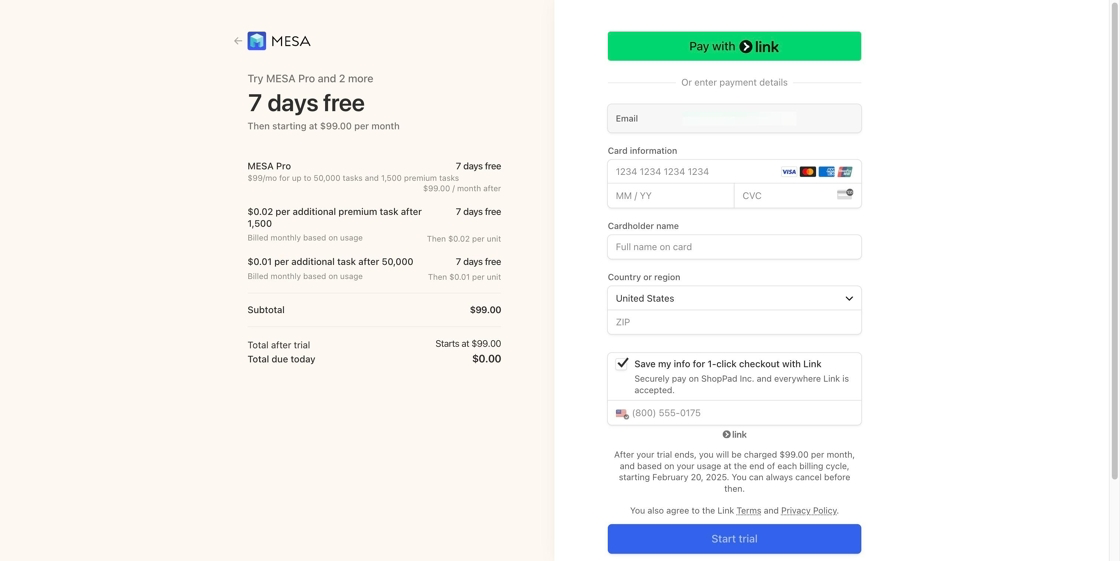
    Screenshot of the MESA payment info screen for starting the trial. Spotlight the payment details form.
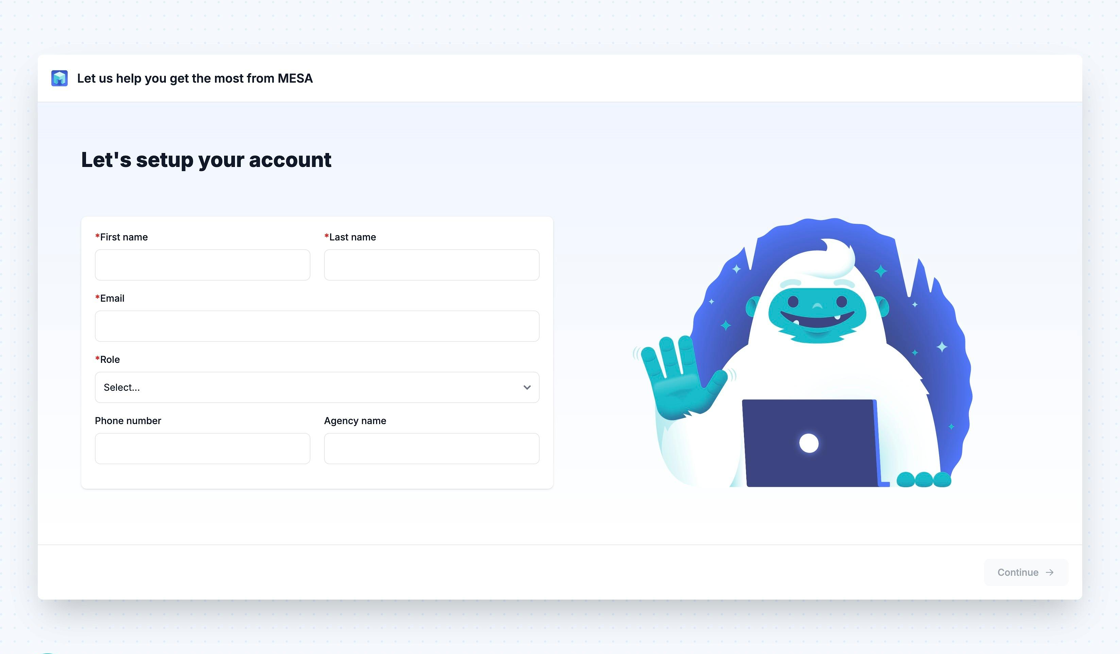
  5. Tell us about yourself and get started!
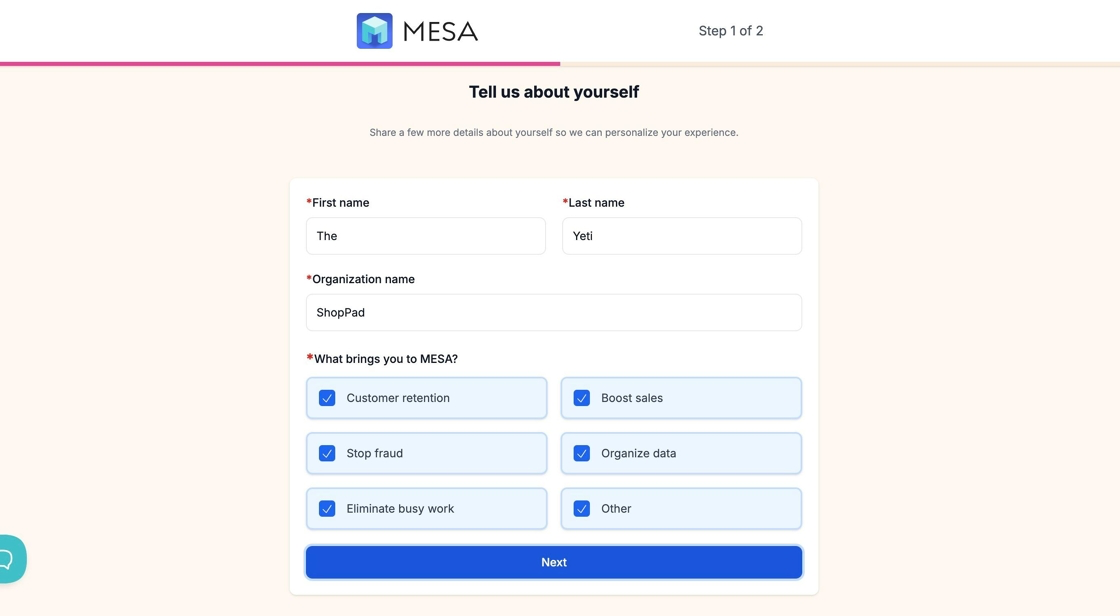
    Screenshot of the MESA onboarding tell us about yourself form. Spotlight the get started button.
  1. Navigate to https://apps.shopify.com/mesa

  2. Click “Install” to add MESA from Shopify’s App Store
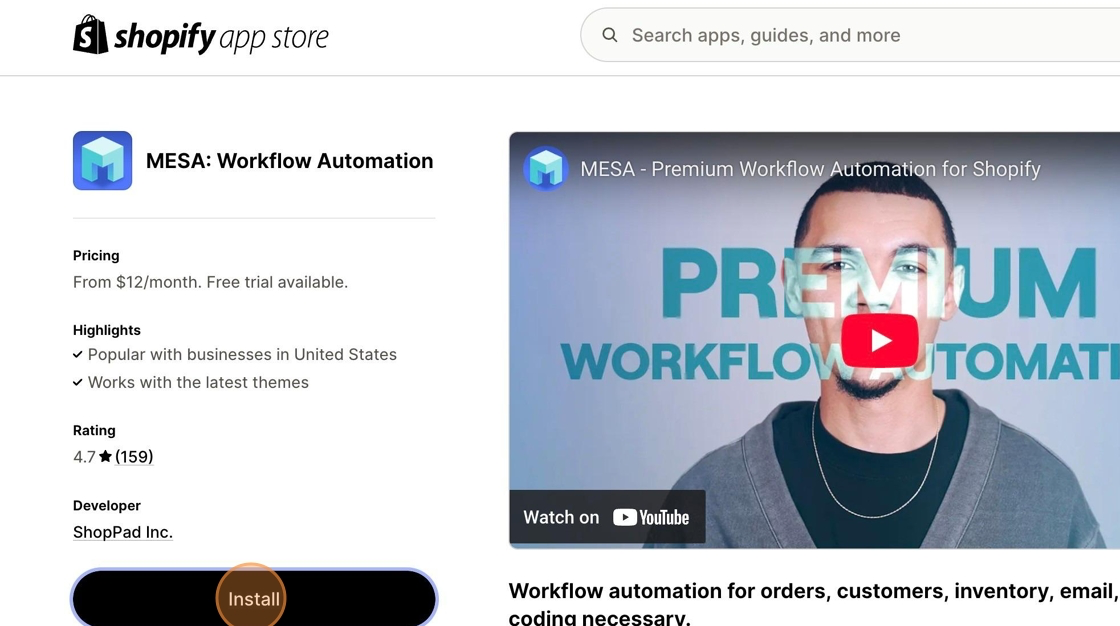
    Screenshot of the MESA listing on the Shopify App Store. Spotlight the Install button.
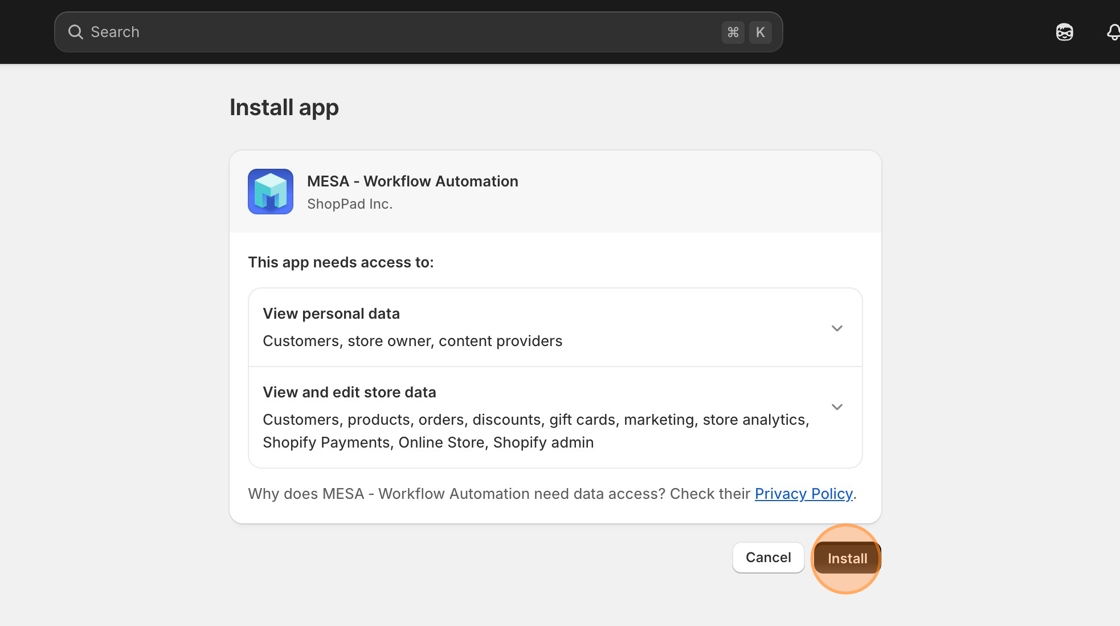
  3. Click “Install” to begin installing

    Screenshot of the Shopify install confirmation screen for MESA. Spotlight the Install button.
  4. Create your MESA account

    Screenshot of the Create your MESA account screen during Shopify install. Spotlight the account creation form.
  5. Select a plan and click “Continue” to start your 7-day free trial
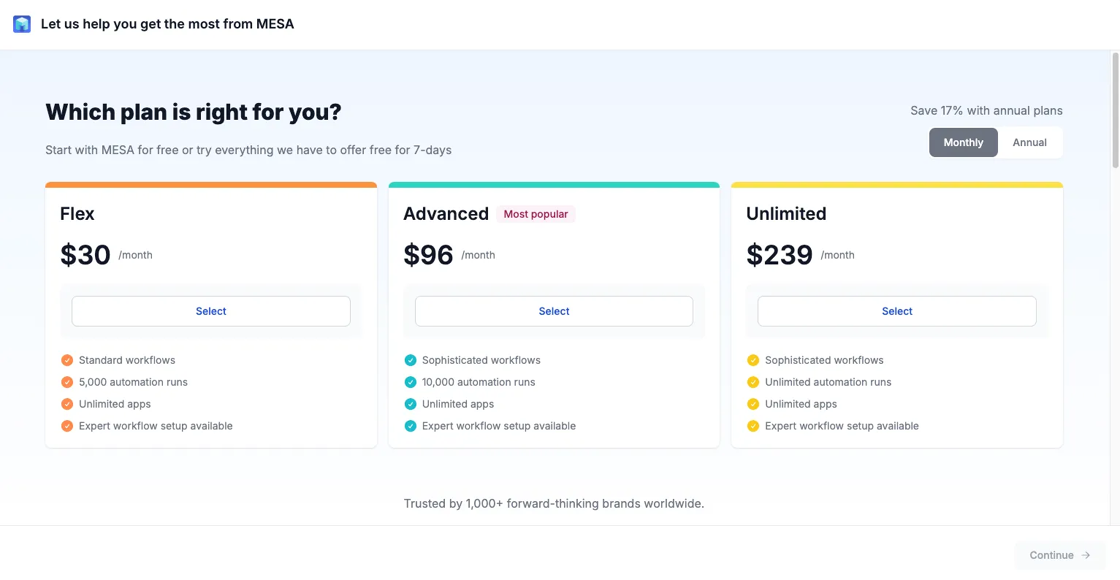
    Screenshot of the MESA plan selection screen during Shopify install. Spotlight the Continue button.
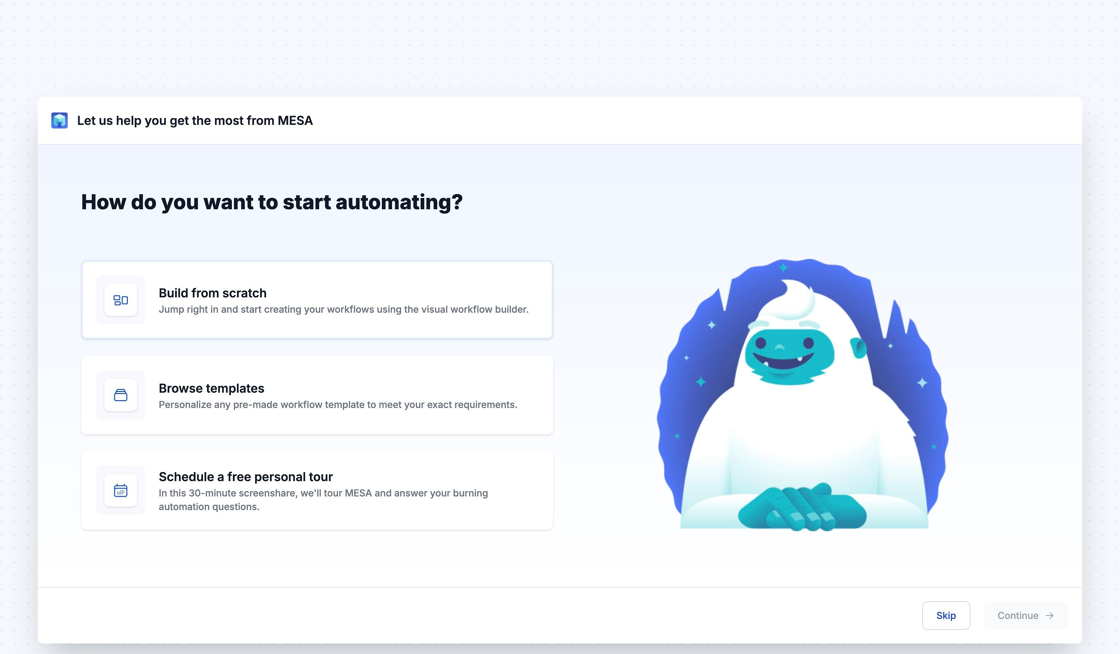
  6. Pick the apps you use and press “Continue”
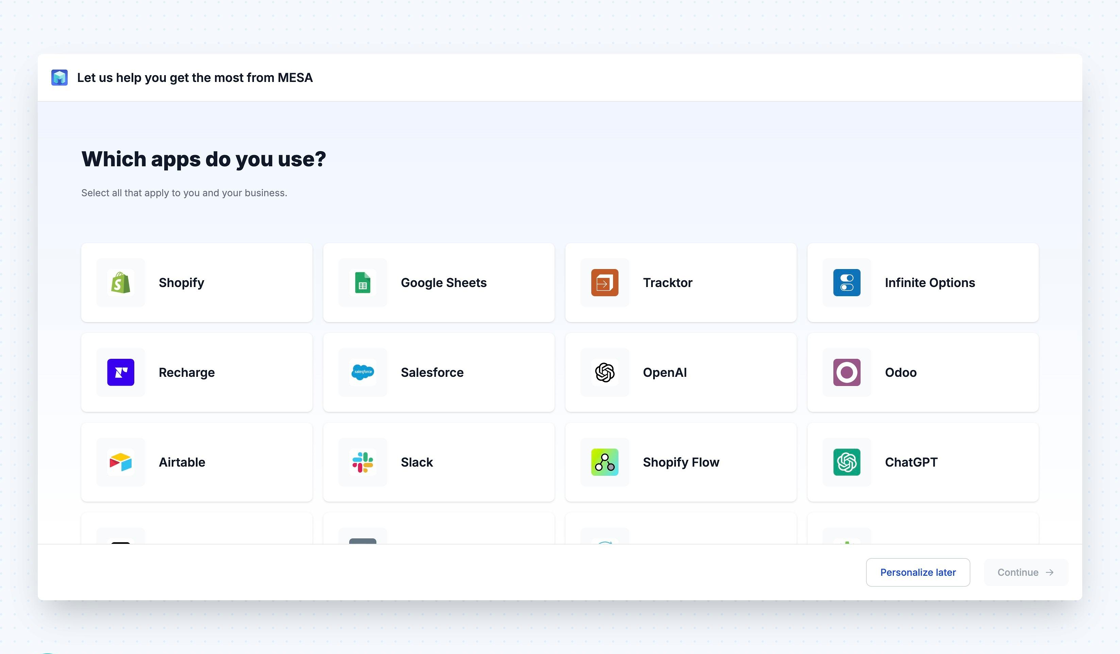
    Screenshot of the MESA onboarding screen for picking the apps you use. Spotlight the Continue button.
  7. You’re ready to automate!

    Screenshot of the MESA ready to automate welcome screen after install. Show the full dashboard view.