Dropbox
Connect Dropbox to MESA through MESA's app or your own custom Dropbox app, then configure steps that upload and manage files.
Connection
Section titled “Connection”When you’re setting up your first workflow with Dropbox, you’ll need to create a connection through MESA’s Dropbox app or through your own custom Dropbox app.
Click on Sign in with Dropbox to complete the process.
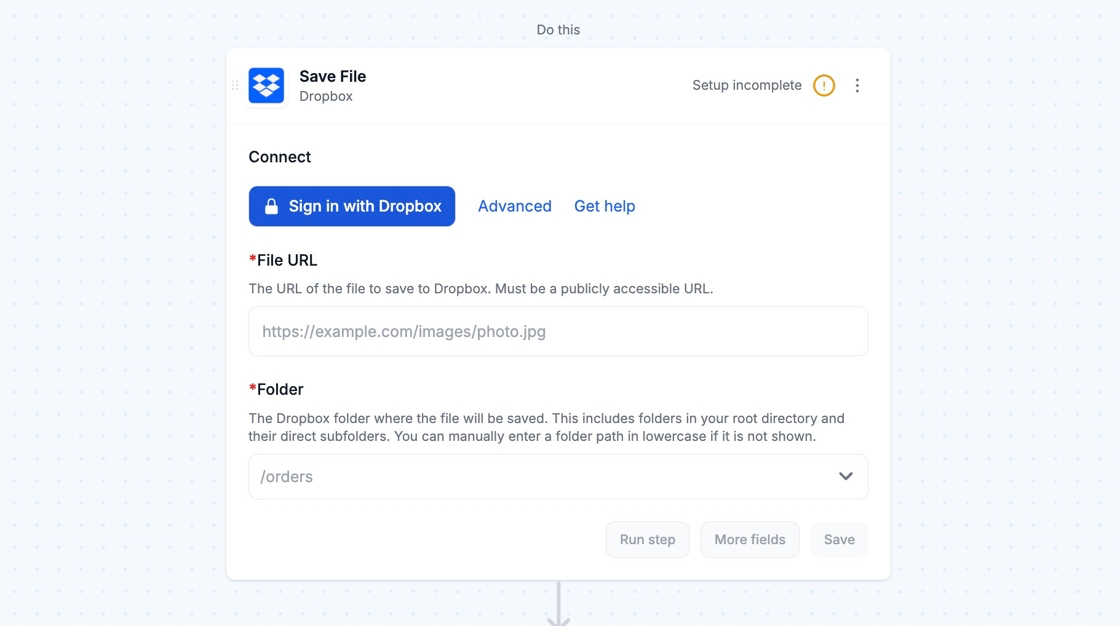
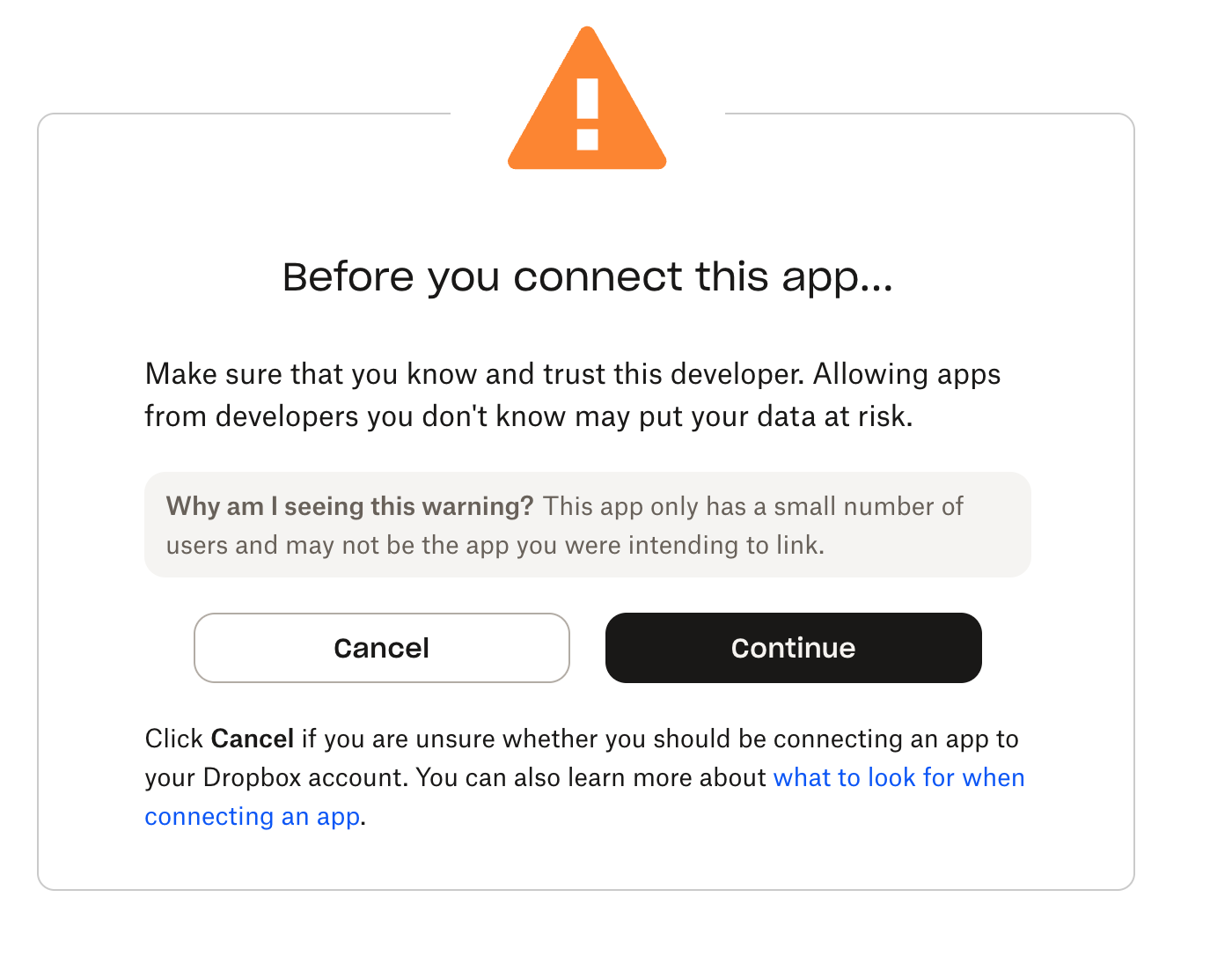
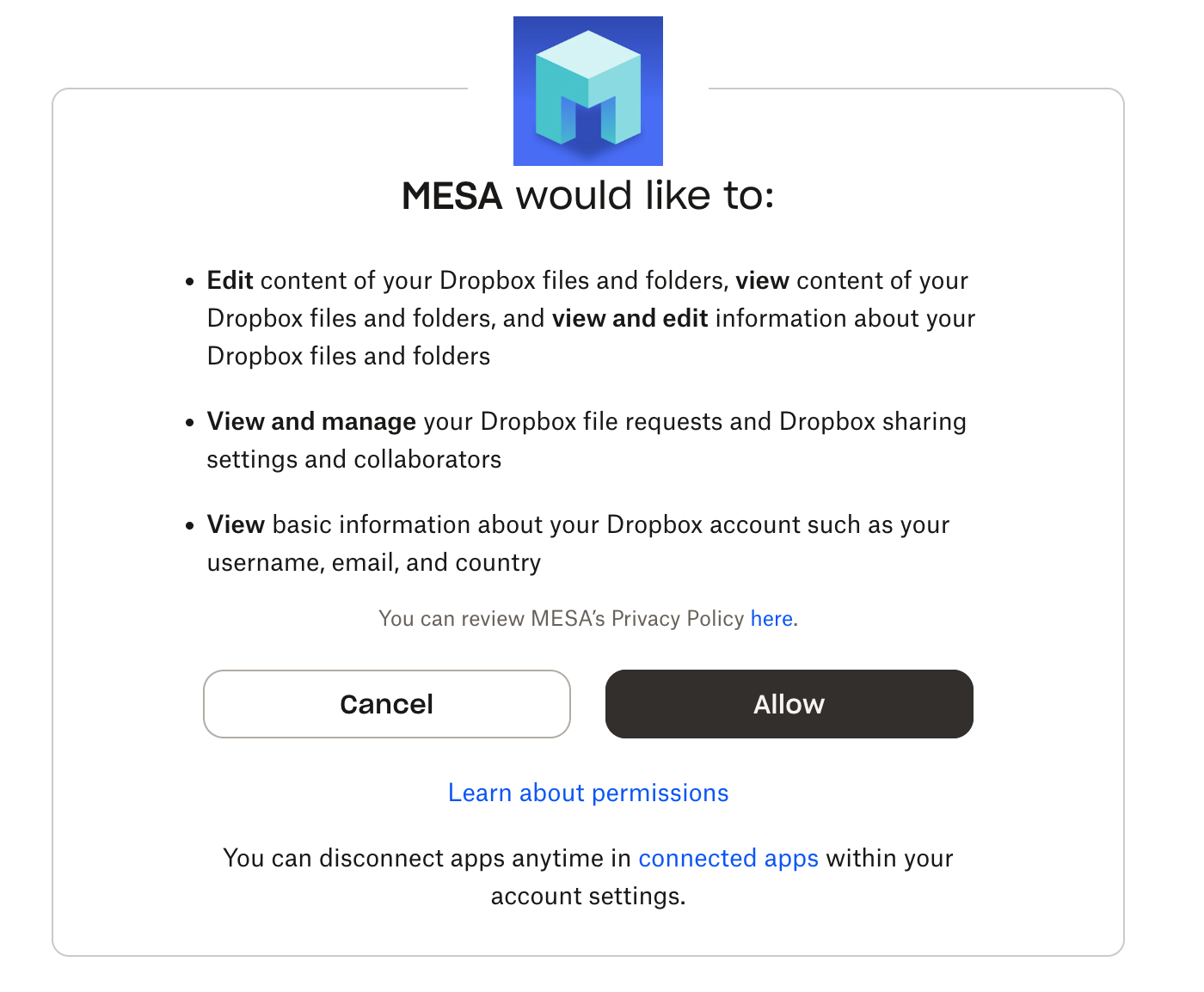
When prompted, be sure to click Continue and Allow to complete the connection.
Configure
Section titled “Configure”Step Configuration fields
Section titled “Step Configuration fields”File url
This field is designated for the uploaded file’s url.
How to fill out this field
1. If you have installed MESA’s existing template called Send Uploadery file to Dropbox, the template will have this field pre-filled with: {{loop.value}}.
2. Another common use case would be sending uploaded files to Dropbox every time a Shopify order is created. Click here to set up this existing MESA template.
3. If your workflow set-up is different than the above two scenarios, feel free to reach out to our Customer Success team for further assistance on how to find the correct File url variable.
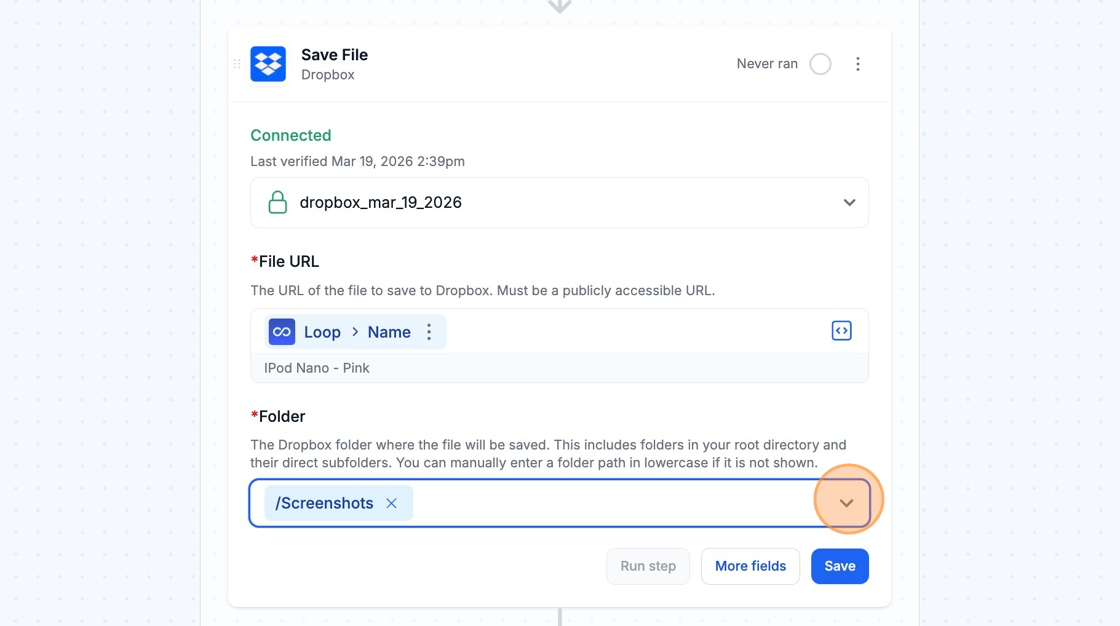
File path
You can specify which folder that you’d like to send the files to.
Technical Notes
Section titled “Technical Notes”- Creating a Shared Link requires higher plans for privacy/password: https://www.dropbox.com/plans
- Create File Request’s deadline feature requires a paid Dropbox account.