
Approval
Pause a MESA workflow for human review with the Approval tool, so someone signs off before data moves on, such as checking AI-written product descriptions.
The Approval tool allows you to pause automations for human intervention and get manual approval before data moves to the next step at any stage in your workflow.
This element of human oversight ensures your workflows process the correct information. For instance, verifying AI-generated prompts before updating product descriptions.
Configure Required Fields
Section titled “Configure Required Fields”Instructions
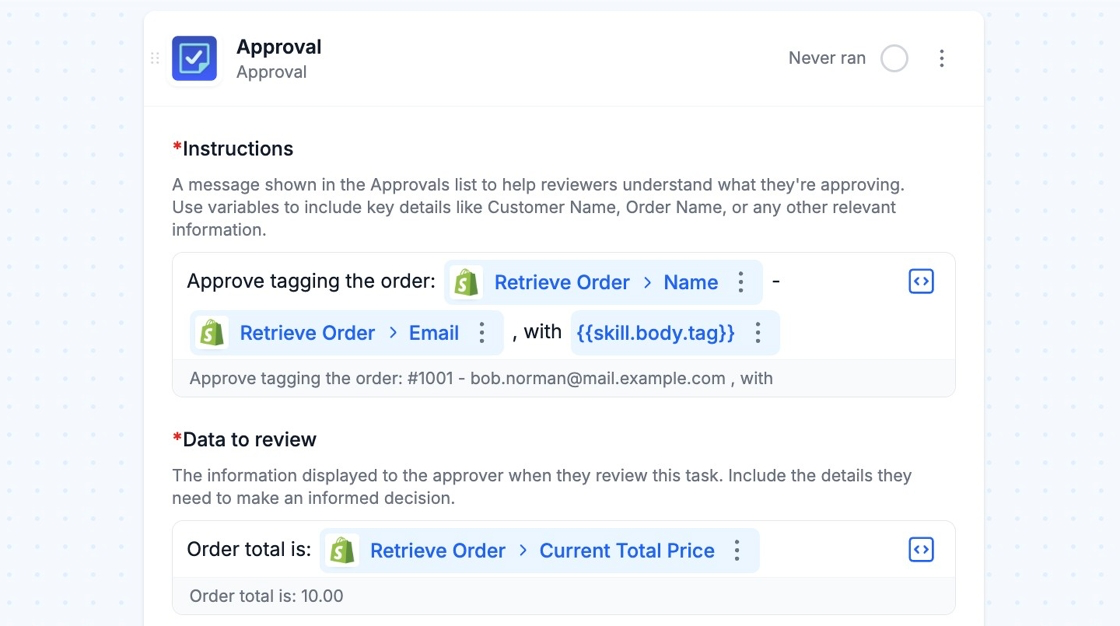
Section titled “Instructions”The Instructions field creates a message shown in the Approvals list to help reviewers understand what they’re approving. Use variables to include key details like Customer Name, Order Name, or any other relevant information.
Data to Review
Section titled “Data to Review”The Data to review field displays information to the approver when they review the approval task. You should include the details they need to make an informed decision.
Configure More Fields
Section titled “Configure More Fields”Click the More fields button in your Approval step to configure settings for your Approval.
Email Notifications
Section titled “Email Notifications”In the Email Notifications field, enter any email addresses that should receive a notification when a new pending approval is created. Recipients can approve or deny the task directly from the email with a single click, without needing to log in to MESA.
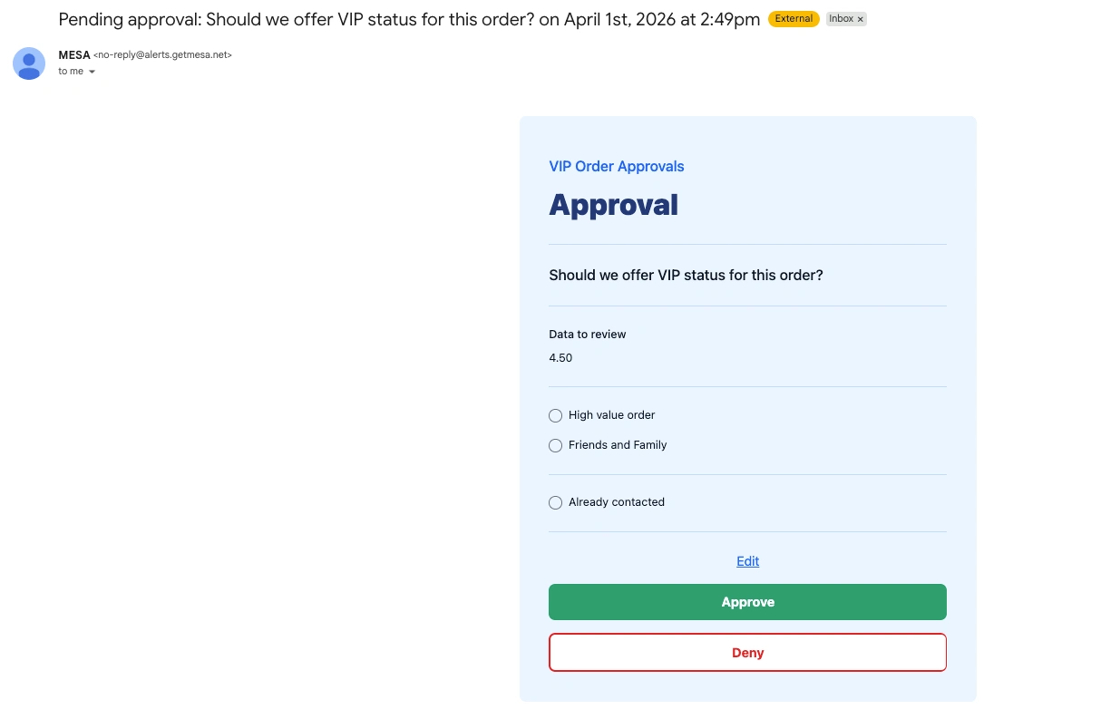
If no email is added, you will need to check the workflow’s Approvals tab to view and action pending approvals.
Continue Workflow When Approval is Denied
Section titled “Continue Workflow When Approval is Denied”By default, a workflow stops when an approval is denied. Enable Continue the workflow when approval is denied to allow the workflow to proceed through the remaining steps regardless of the outcome.
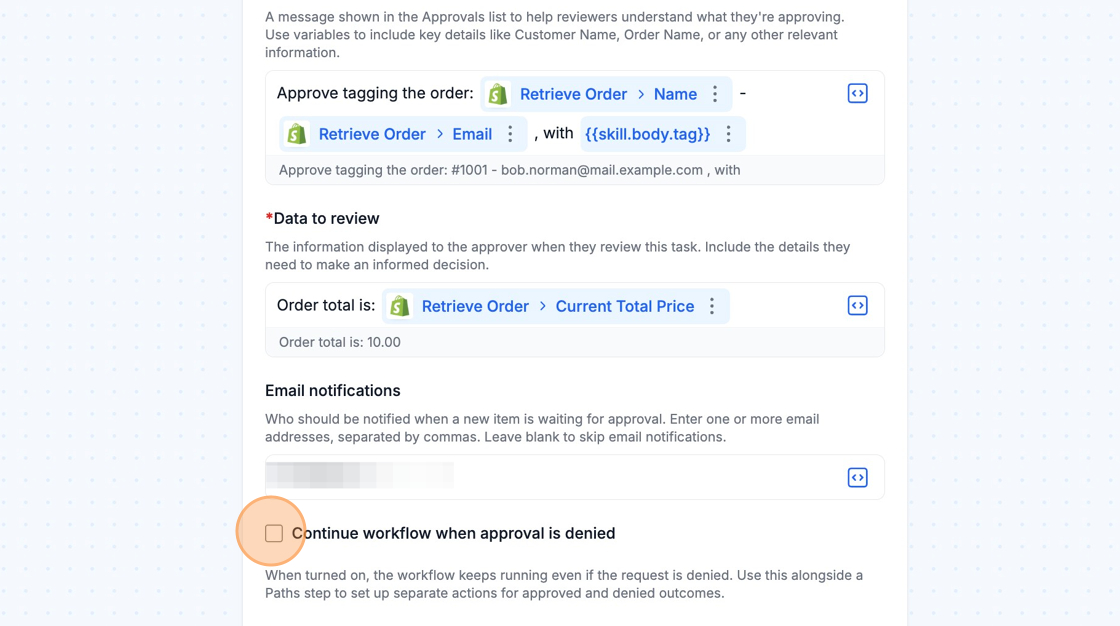
Use this in combination with a Paths step to create actions for approved and denied outcomes.
Changing Labels for Approve and Deny
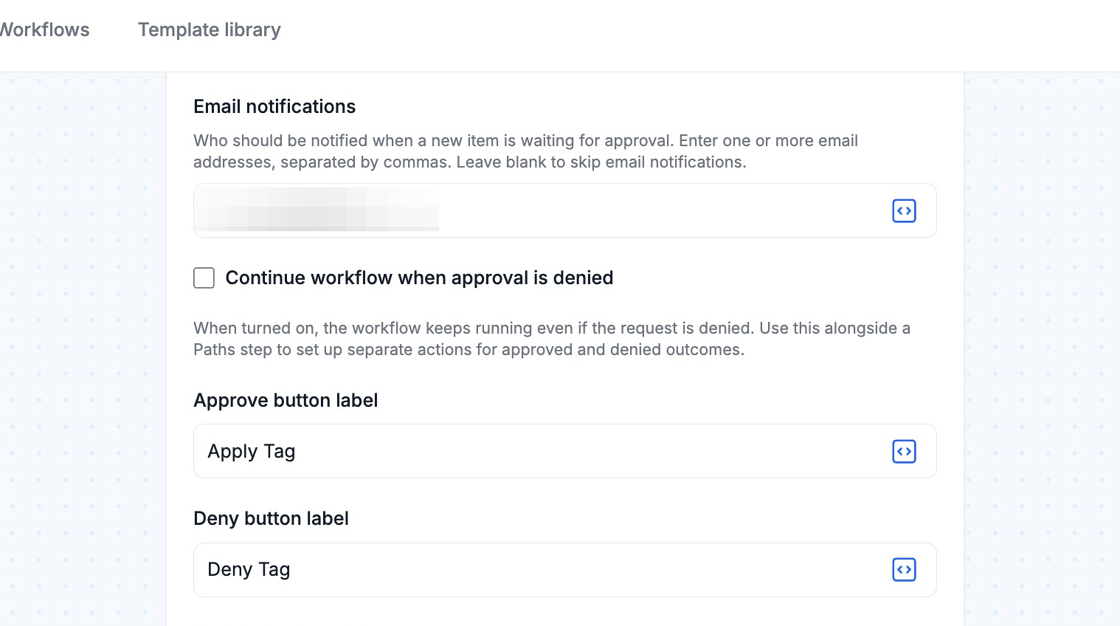
Section titled “Changing Labels for Approve and Deny”In cases where “Approve” and “Deny” are not the appropriate labels, they can be overwritten using the Approve button label and Reject button label fields. Click the More fields button to access those fields.
Auto-advance
Section titled “Auto-advance”The Auto-advance rule automatically approves or denies a pending approval after a specified amount of time.
This is useful when you want a default outcome if no reviewer responds within a set window.
Approve and Deny Reasons
Section titled “Approve and Deny Reasons”You can create a list of reasons for the reviewer to select from upon approving or denying an approval task.
If left blank or unchecked, reviewers will be able to approve or deny without selecting a reason.
Approvals Tab
Section titled “Approvals Tab”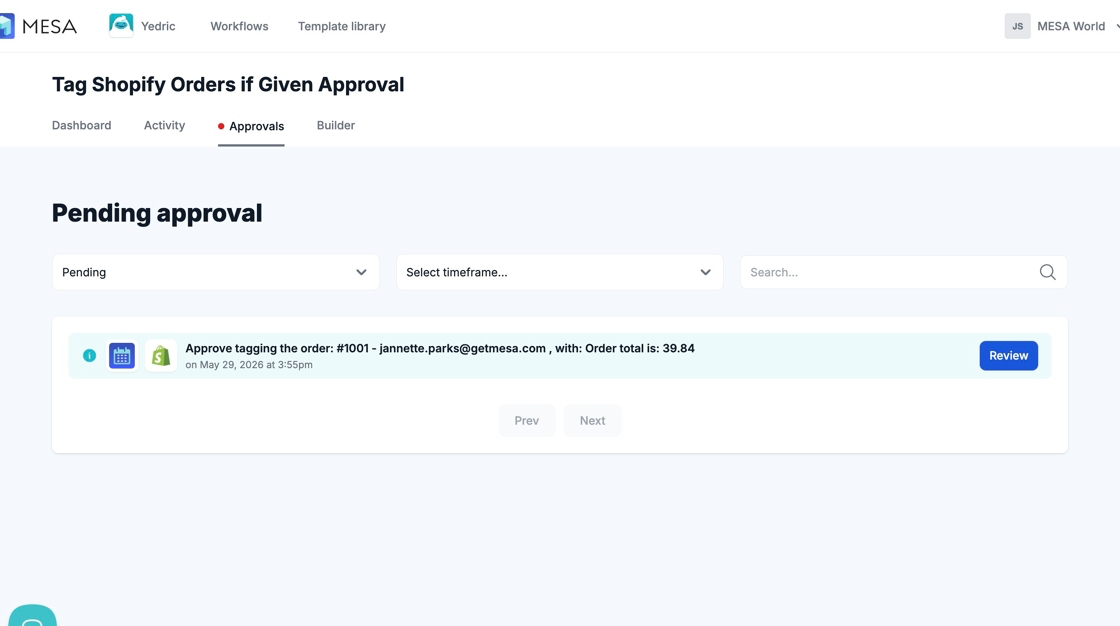
The Approvals tab in your workflow is where you can view, approve, or deny pending approvals at any time.
Going Further
Section titled “Going Further”Editing a Payload Before Approving
Section titled “Editing a Payload Before Approving”From the approval notification email, reviewers can open the Edit page — accessible outside of the MESA app — to adjust the payload before approving or denying the task. This is useful when the data needs a correction before the workflow continues.
Other uses for an Approval step in your workflow
Section titled “Other uses for an Approval step in your workflow”- Creating a draft environment for your workflow while building.
- Escalating orders to a specific person before issuing a discount or free product.
- Any stage in a workflow where human intervention is deemed necessary.
Technical Notes
Section titled “Technical Notes”The task history and replay of approvals are influenced by your plan limits.