Google Drive
Connect Google Drive to MESA with a Google sign in and find the folder and file IDs you need to configure your Drive steps.
Connection
Section titled “Connection”When you’re setting up your first workflow with Google Drive, you’ll need to create a connection through MESA’s Google App or your own custom Google App. Click on Connect with Google to finish the process.
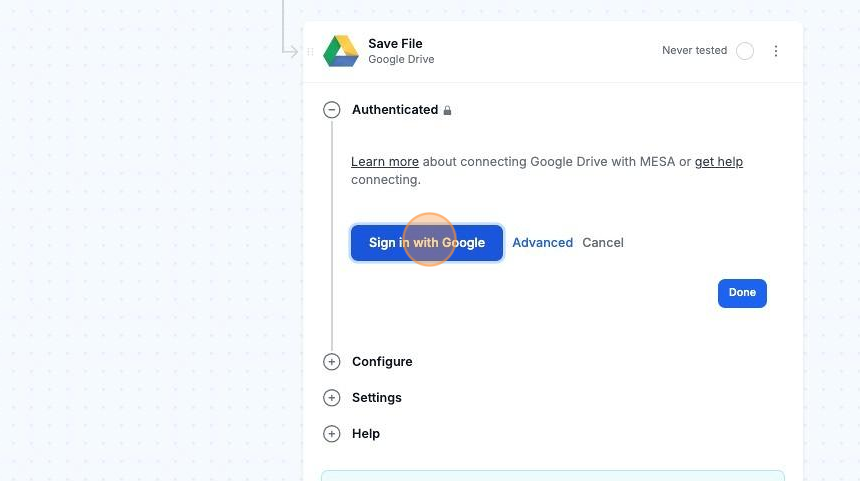
Afterward, your connection will be selected!
Configuration
Section titled “Configuration”The fields below can be located by selecting More options:
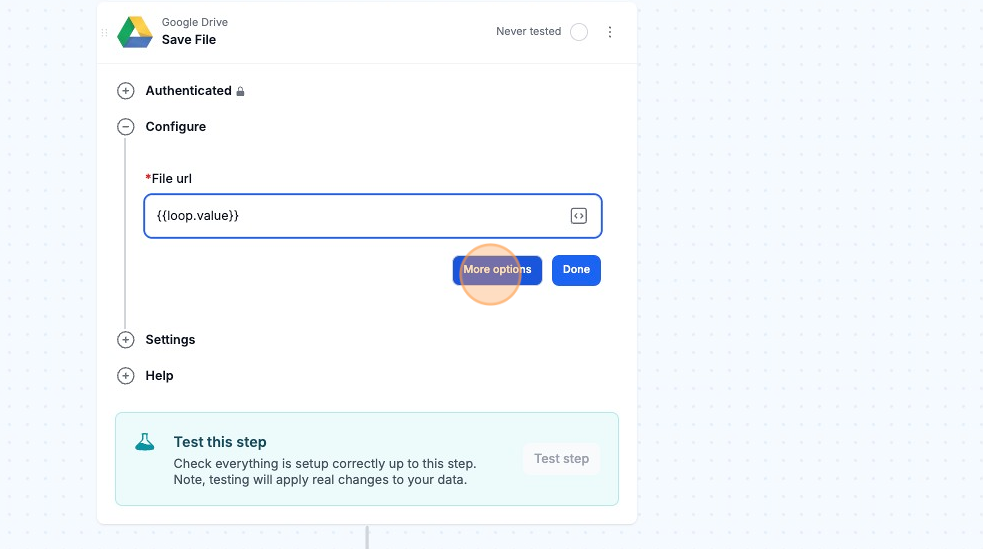
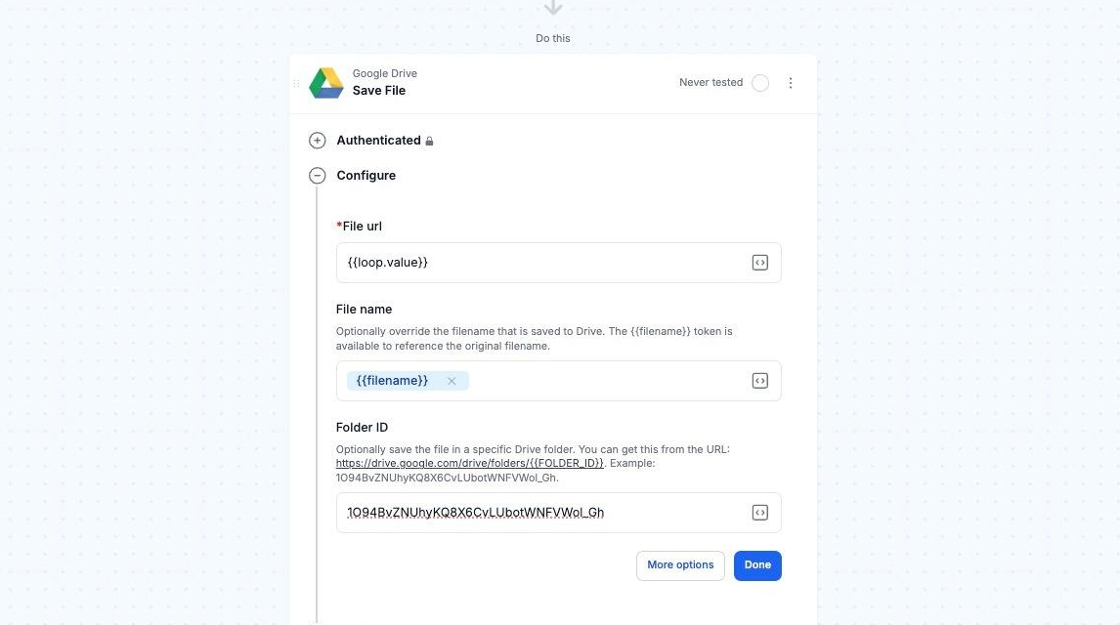
- File URL: The URL of the file that will be uploaded to your Google Drive account. Plain text should be not inputted.
- Filename: This field currently only accepts {{filename}}. Variables are currently not supported at this time.
- Folder ID: You can locate the folder ID from this URL, where the {{FOLDER_ID}} should be: https://drive.google.com/drive/folders/{{FOLDER_ID}}. Example: 1O94BvZNUhyKQ8X6CvLUbotWNFVWol_Gh
The following screenshot is from MESA’s Send Uploadery file to Google Drive template.