
Discord
Sign in with Discord, pick the server to connect, and use Discord steps in MESA workflows to send messages to your channels.
Connection
Section titled “Connection”When you’re setting up your first workflow with Discord, you’ll need to connect your Discord account with MESA.
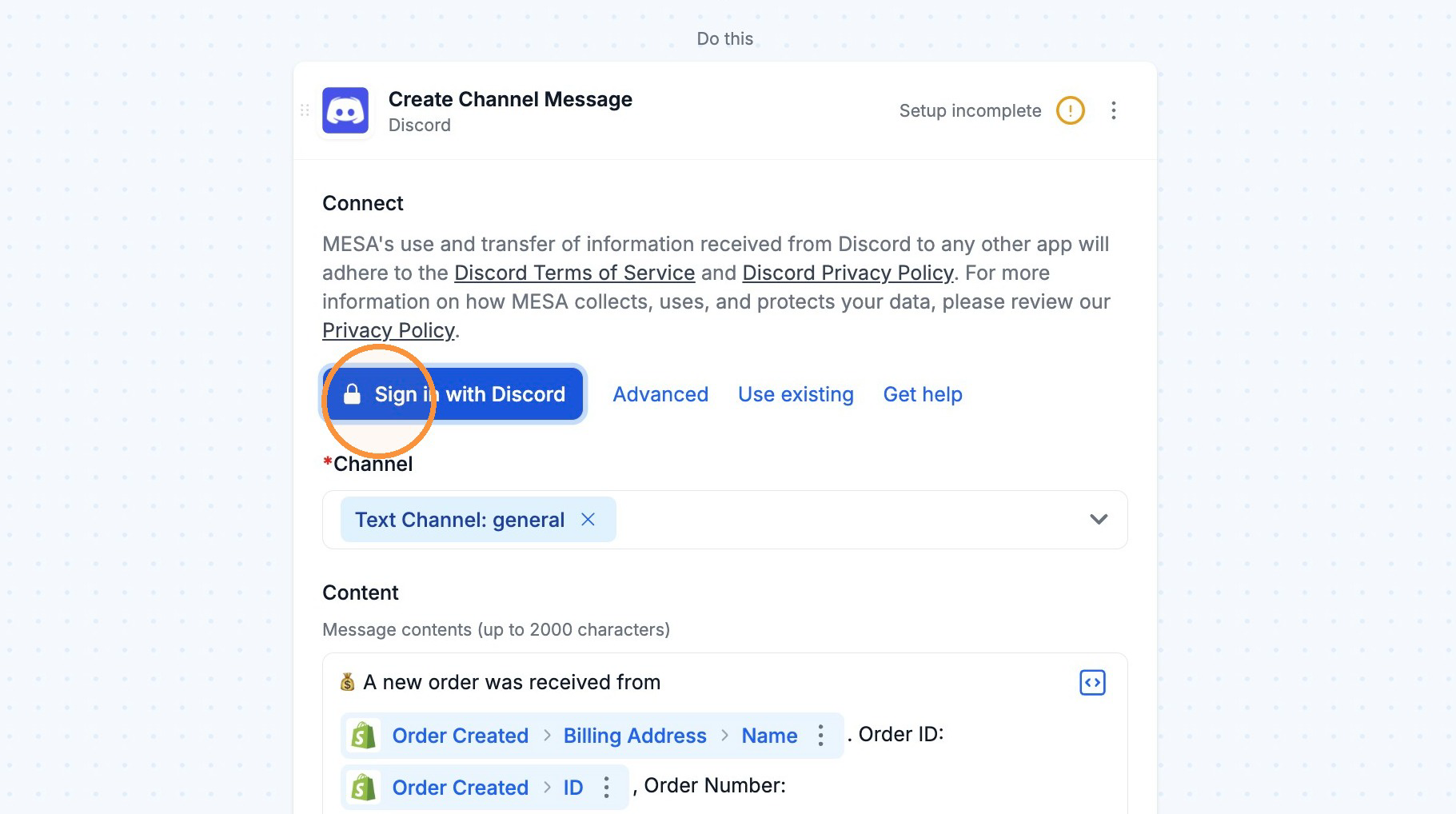
Click on the Sign in with Discord button to begin the process.
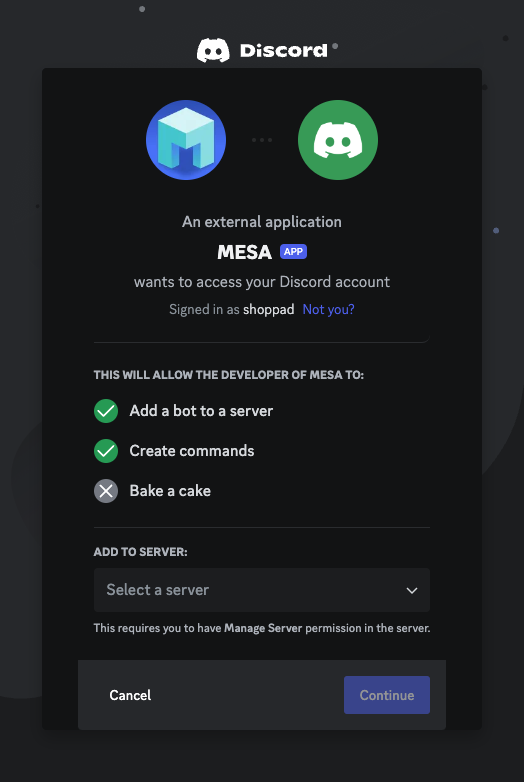
You will then see this screen that allows you to select the server you are connecting to. Select the Server and click Continue.
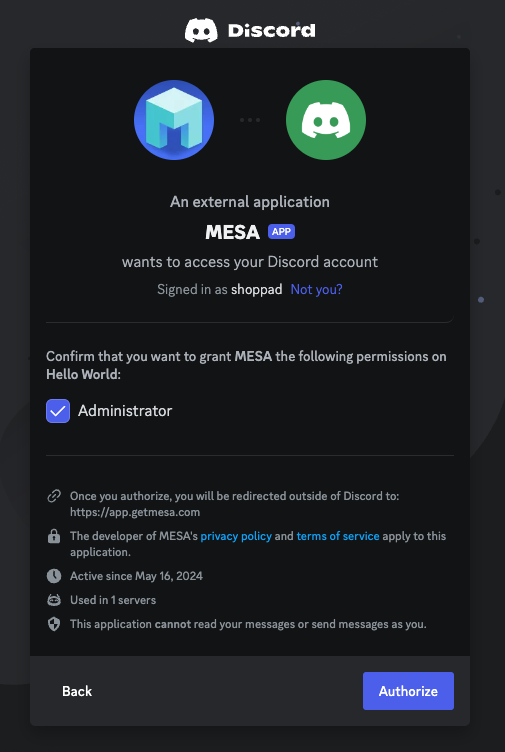
You will then see this permission screen. Click Authorize.
Afterward, you can re-use the newly created connection in your future workflows!
Error: “You need to verify your account in order to perform this action”
Section titled “Error: “You need to verify your account in order to perform this action””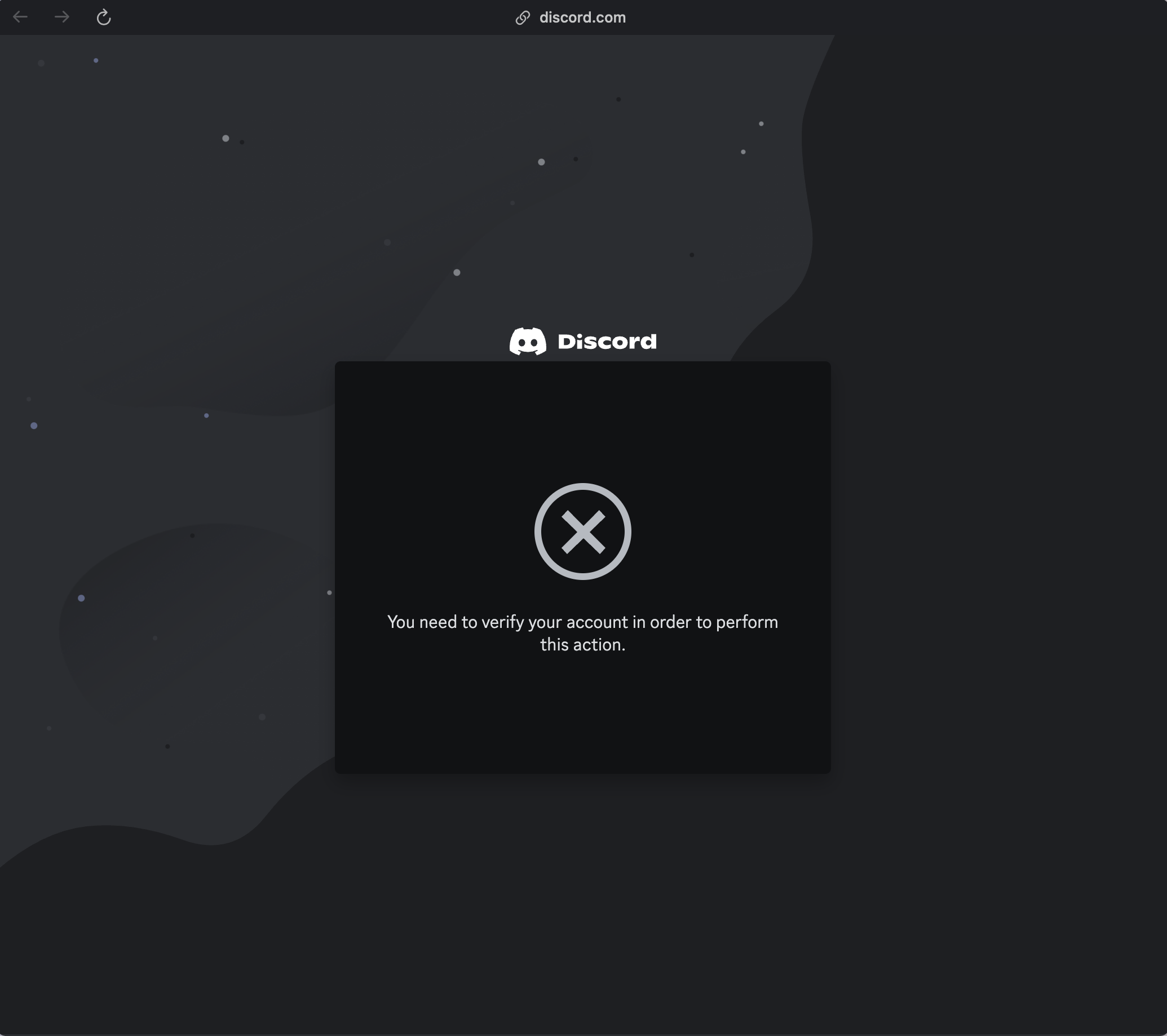
If you see this error after clicking “Sign in with Discord” in MESA, you will need to verify your account. Another reason could be that you need a private server before authenticating with the MESA app.
Click this link for step-by-step instructions on how to verify your account in Discord.