
HubSpot
Connect HubSpot to MESA as a Super User and choose the account to link, then sync contacts and deals from your workflows.
Connection
Section titled “Connection”When you’re setting up your first workflow with HubSpot, you’ll need to create a connection. Click Connect with HubSpot to start the process.
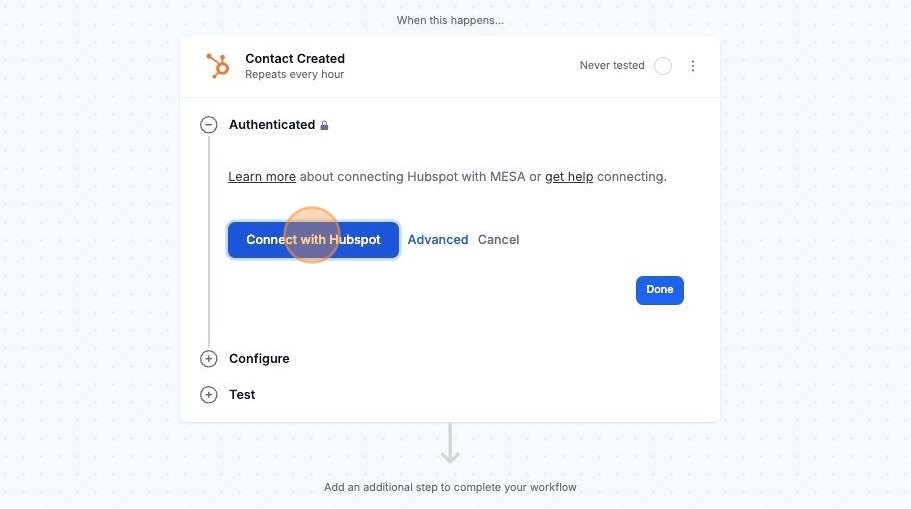
If you are not already logged in, you will be asked to log in and select the HubSpot account that you want to connect.
Configure
Section titled “Configure”Click the Retrieve Fields button to pull in the current fields associated with your HubSpot action.
If you ever update your fields in HubSpot, you will need to click the Retrieve Fields button to pull in the latest changes.
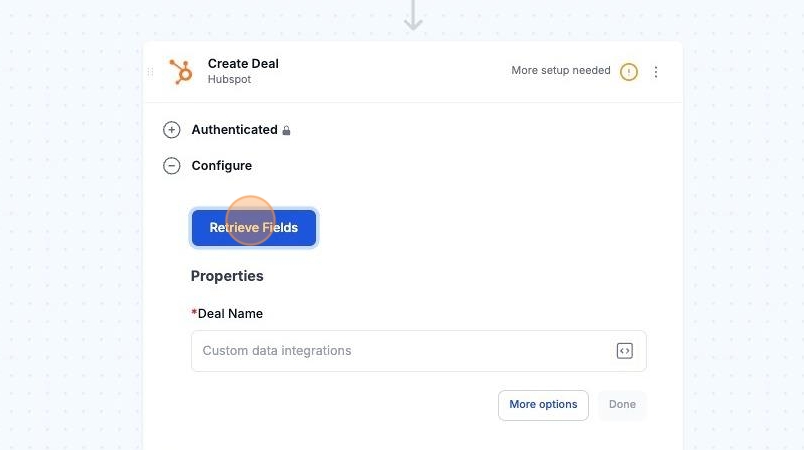
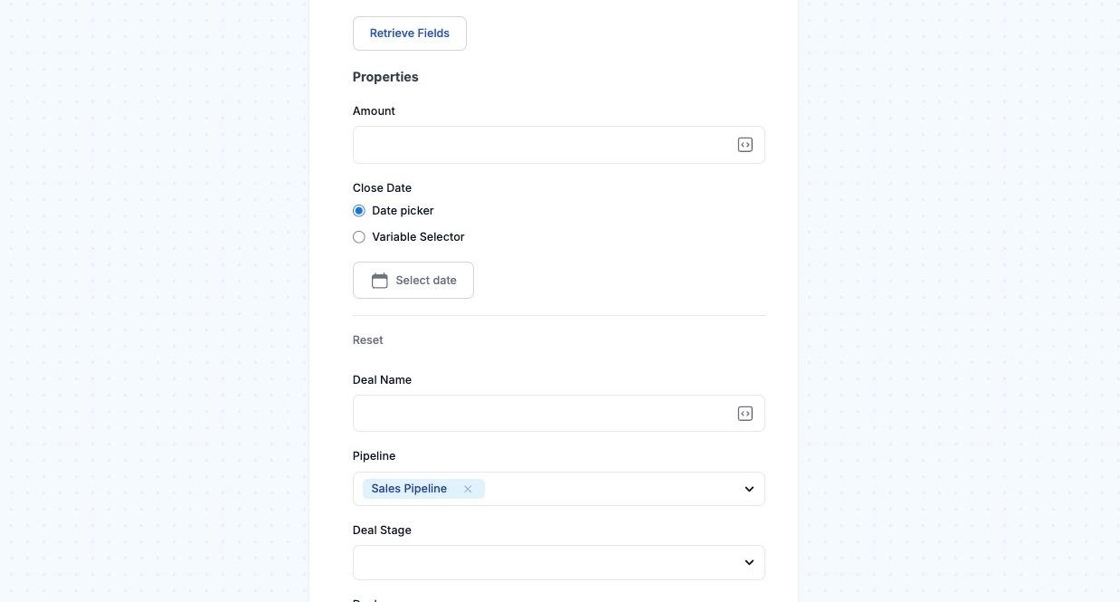
Example of fields that display from HubSpot
Finding Contact, Deals, and Companies
Section titled “Finding Contact, Deals, and Companies”Use the “Search” actions for the object you want to retrieve: Search for Contact, Search for Deal, Search for Company
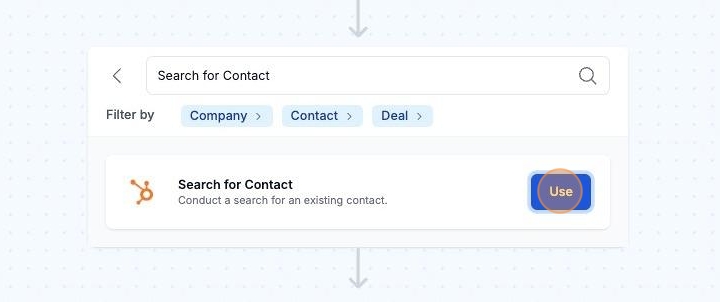
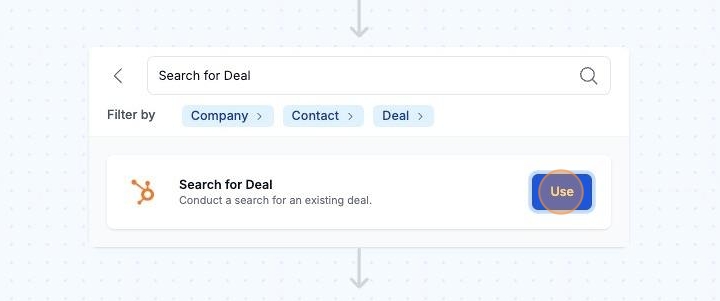
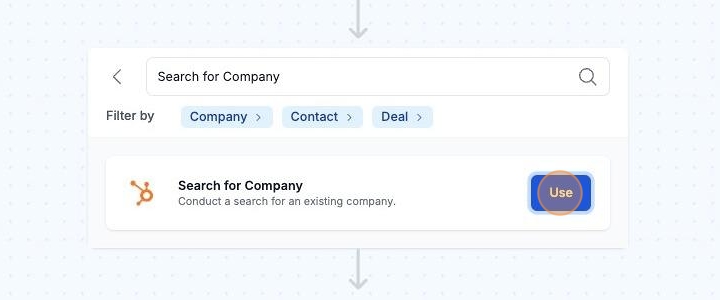
It is recommended to set up these fields while using these actions:
- Limit: Set the number of results to return from this action. If you would only like 1 result to return, please set it to 1.
- After: Set to 0.
- Query: Add text and use it if you want to run a general query.
- Filter Groups: Use this instead of Query to run a specific query. Hit Add Set and fill in the Property Name, Operator, and Value fields.
Add “Retrieve” actions to retrieve the variables from your search results.
Selecting Pipelines
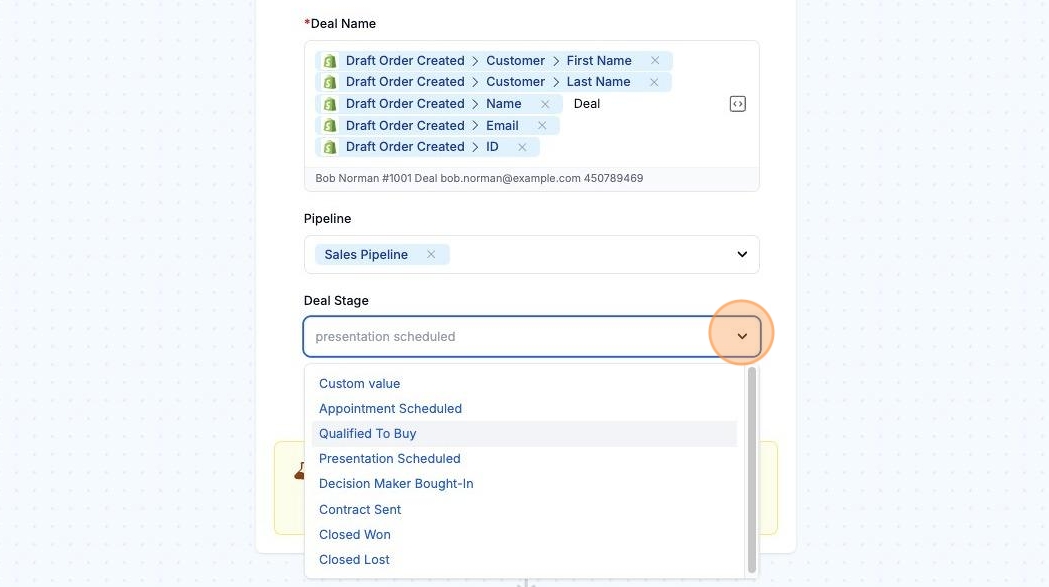
Section titled “Selecting Pipelines”Once you have connected HubSpot with MESA, click the More options button and select the Pipeline field to add a value.
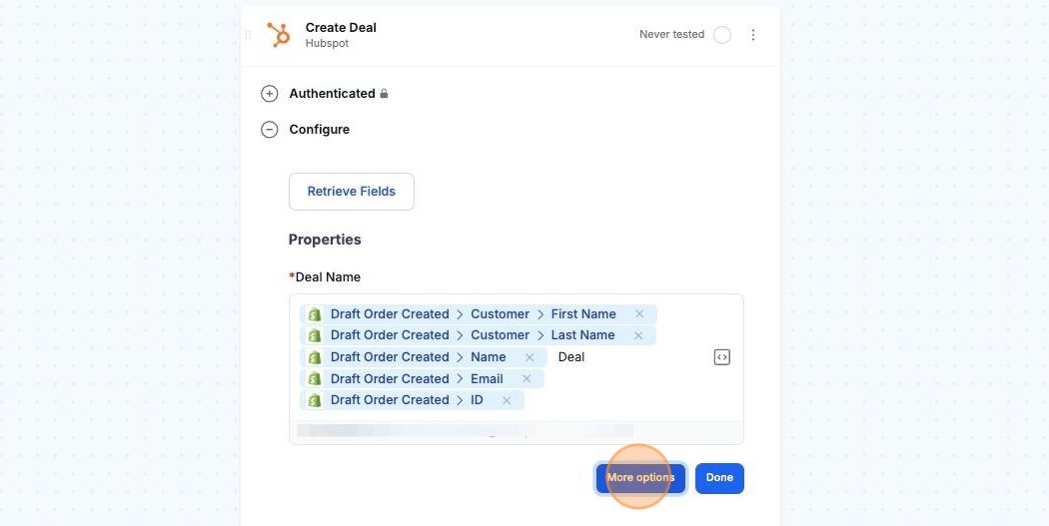
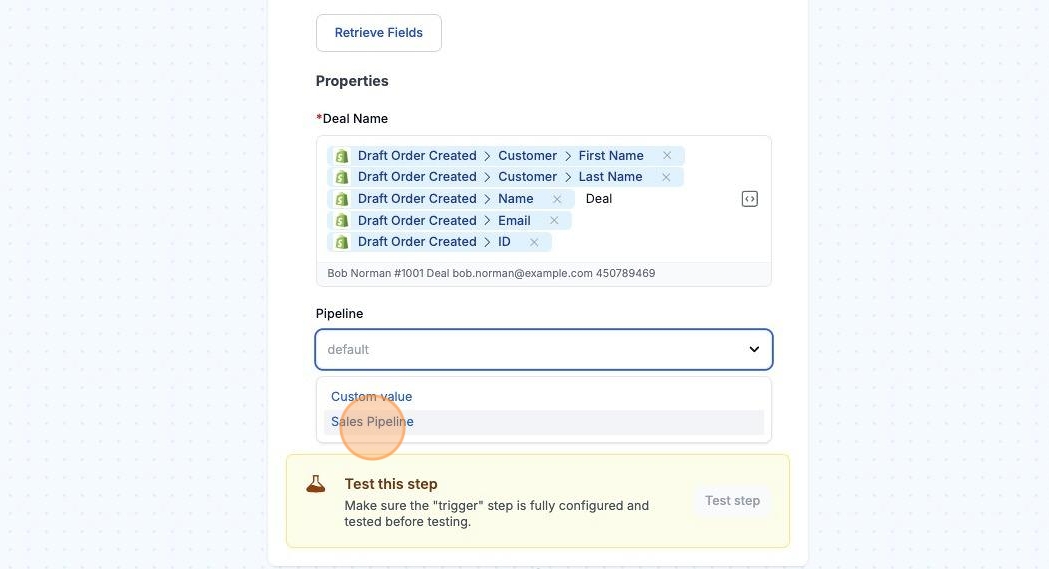
Now that you have a Pipeline specified, select Deal Stage from More options. MESA will only retrieve Deal Stages linked to that Pipeline.
Technical Notes
Section titled “Technical Notes”Requirements
Section titled “Requirements”- Super User permissions: Requires Super User permissions on your HubSpot account in order to connect MESA with HubSpot
- Your HubSpot plan must have access to the following scopes.
- crm.objects.companies.read
- crm.objects.companies.write
- crm.objects.contacts.read
- crm.objects.contacts.write
- crm.objects.deals.read
- crm.objects.deals.write
- crm.objects.owners.read
- e-commerce
- oauth
If you have any issues with creating a connection and authenticating with HubSpot, we recommend reaching out to the HubSpot support team here: help.hubspot.com